Renaming several files in Ecco
Ecco can rename several files by numbering them. One useful application is renaming a set of photos.
Select the files you want to rename, then right-click one of them and choose Rename…, or press F2. A dialog opens where you can specify what the files should be called.
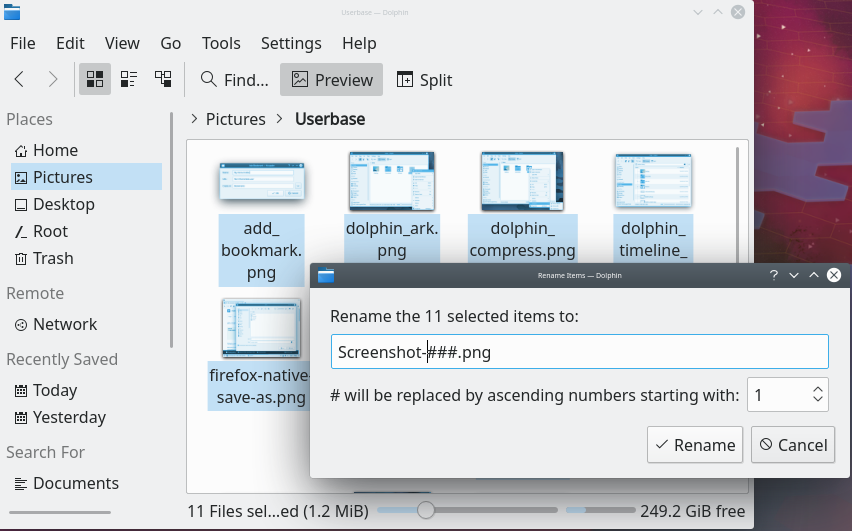
The # symbol anywhere in the name is replaced with a number, starting with 1 for the first file and going up for each file after that. # will be replaced by ascending numbers starting with lets you choose a different first number. Using several # symbols adds leading zeroes to the numbers:
#is replaced by 1, 2, 3, 30, 150 and so on####is replaced by 0001, 0002, 0003, 0030, 0150 and so on
The dialog also lets you choose whether the new name replaces the filename or goes before or after it. See Renaming a batch of files for more.