Terminal tips
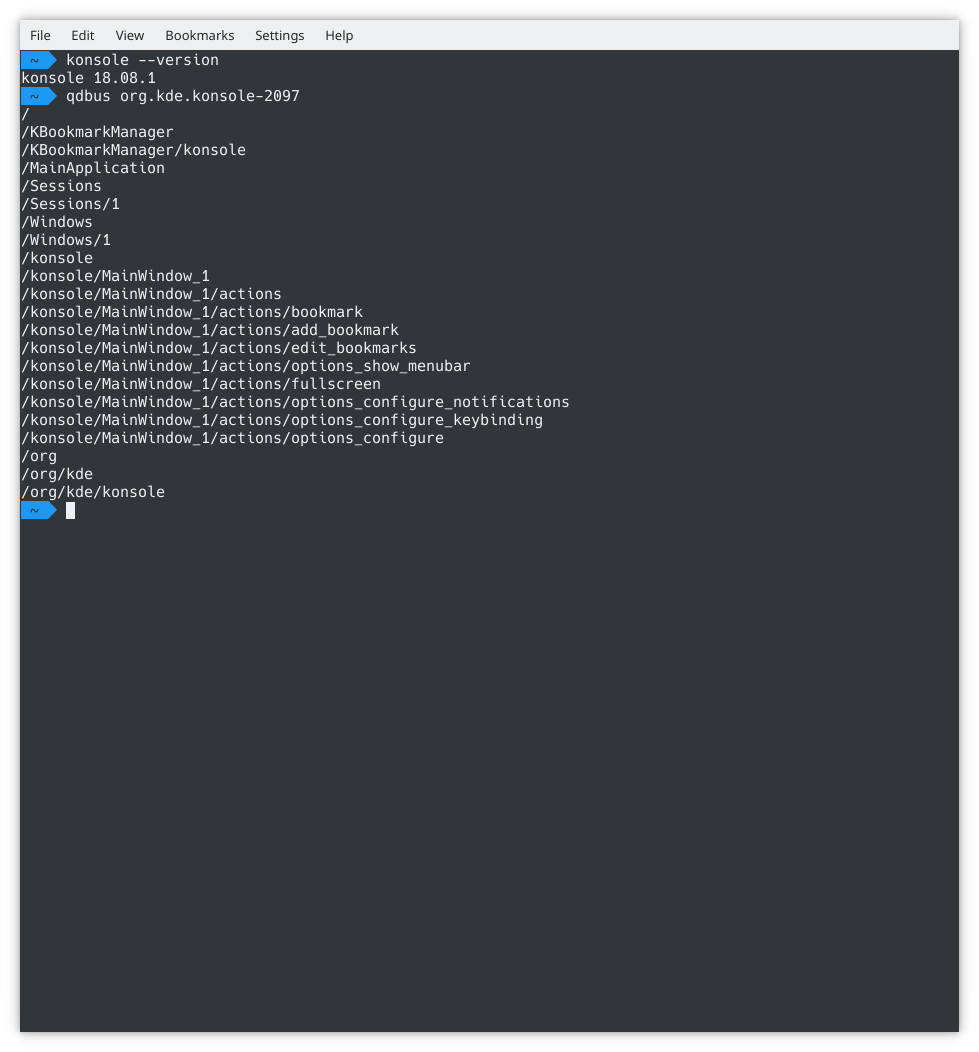
Terminal gives you a convenient way to use the command line. Besides a powerful shell, it offers features that make working on the command line easier and more pleasant, such as profile management, scrollback and color schemes, including translucency. The Terminal page describes every command and setting.
Terminal also provides an embedded terminal that other applications use, such as the Terminal panel in Ecco, so the command line looks and works the same there.
Features
- A terminal emulator for X11 that makes using the command line easier
- Different profiles for different tasks
- A scrollback limit, and saving its contents to a file
- Opening links in your default web browser with a right-click
- Opening the current path in your file manager
- A translucent background when desktop effects are enabled
- The environment variable
SHELL_SESSION_ID, whose unique value persists across desktop sessions
Language
To change Terminal's language to plain English, for example to read error messages when reporting a bug, run:
export LANG=en_US.UTF-8
Shortcuts
- Switch tab: Shift+Left and Shift+Right. These have the advantage of being reachable with one hand on virtually all keyboard layouts, while some layouts only have an Alt key on the left.
- New tab: Ctrl+Shift+T.
Label your tabs
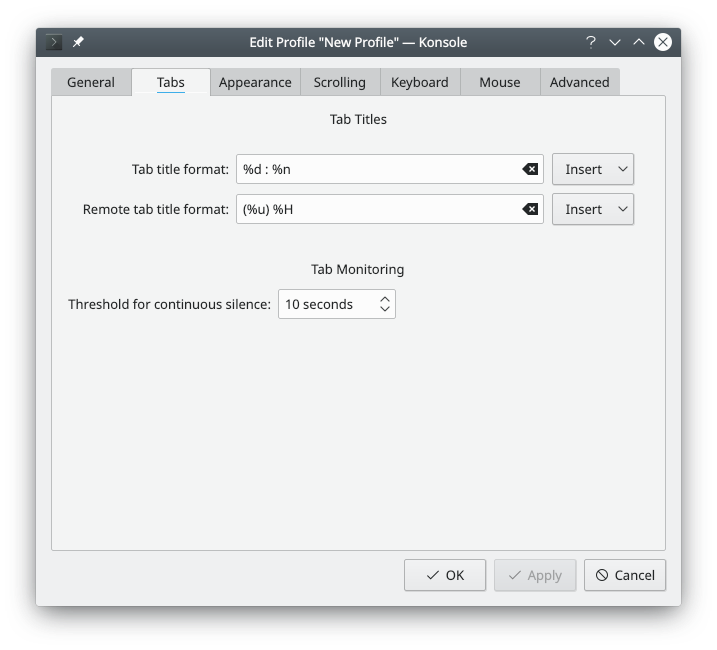
If you regularly use a lot of tabs, it can be convenient to label them. Double-click a tab to open a dialog where you can rename it.
Profile management
- To add a new profile, go to Settings > Manage Profiles… and click New….
- On the General tab, enter the new profile's name and change the icon if you want.
- For a root terminal, enter the command
/bin/su -.
Tip: This command won't work on any distribution that relies on sudo. On those, use
sudo su, or putsudoin front of each command that needs superuser privileges.
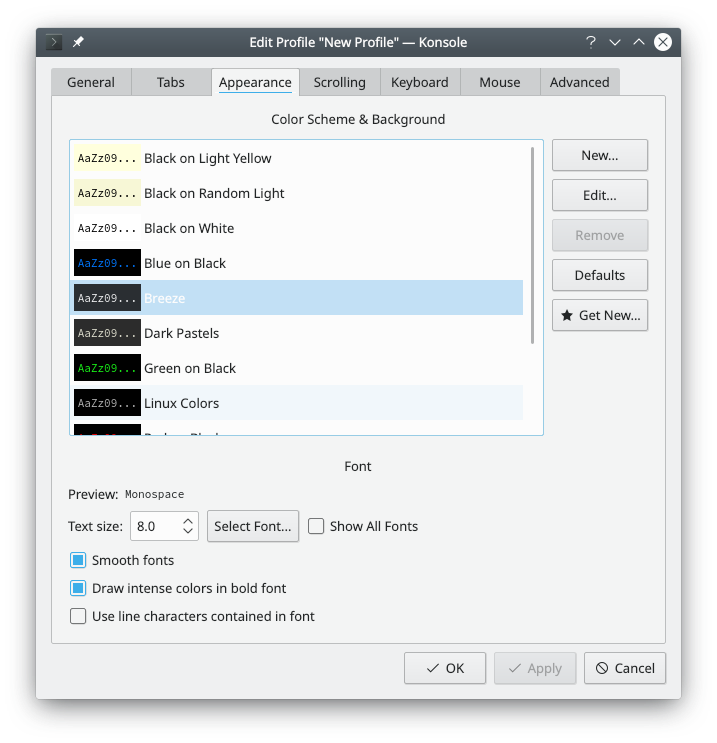
- The font size can be changed on the Appearance tab.
Padding
You can change the padding between the window border and the text, sometimes called the margin or gutter. It's the Margins setting on the Appearance tab of your profile.
You can also edit your profile file, ~/.local/share/konsole/<profile name>.profile, and set this in its [General] group:
TerminalMargin=7
Change the number to whatever size you prefer.
Per-tab Bash history
If you want each tab to remember its own Bash history, and restore it with the session after a reboot or when you log out and back in, add this line to your ~/.bashrc:
HISTFILE="$HOME/.bash_history.${KONSOLE_DBUS_SESSION##*/}"