Fonts
This module lets you select fonts for different parts of the desktop.
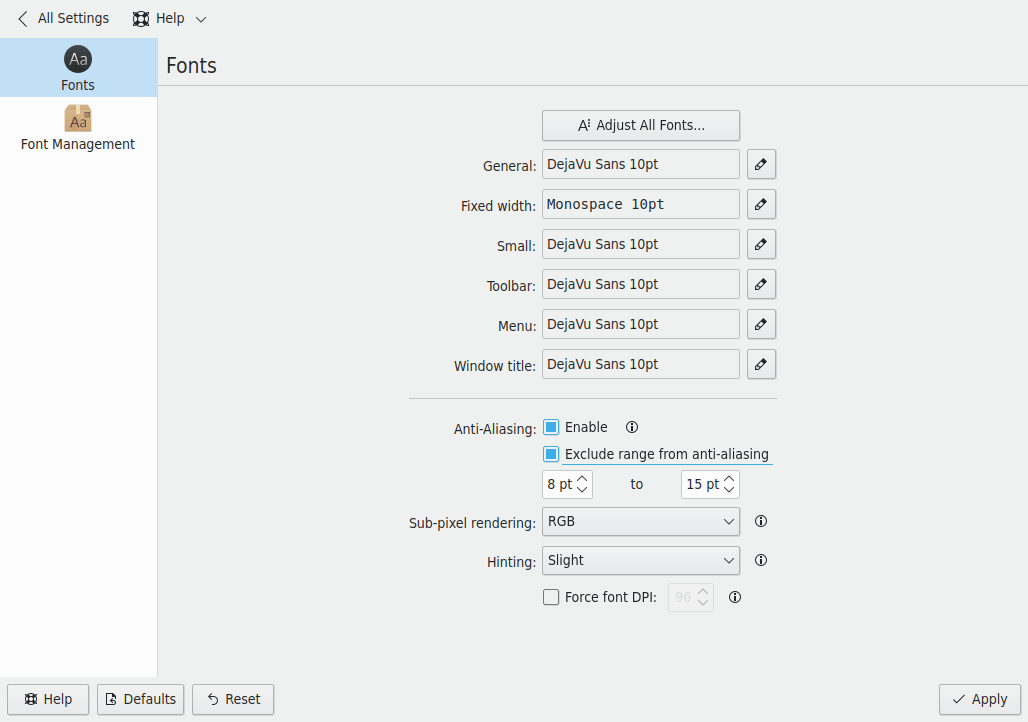
- General: Used everywhere the other groups don't apply.
- Fixed width: Used wherever a non-proportional font is specified.
- Small: Used where small fonts are needed.
- Toolbar: Used in application toolbars.
- Menu: Used in application menus.
- Window title: Used in the window title.
Each group shows an example of its font and has a button to choose another, with a font, style and size. Show only monospaced fonts filters the list.
Very large or very small fonts may look odd. The recommended way to scale the interface is the global screen scaling feature, which Adjust Global Scale… takes you to.
Adjust All Fonts… quickly sets properties for all the fonts above. It opens a similar dialog with checkboxes to change the Font, Font style or Size independently, and whichever you choose is applied to all the groups.
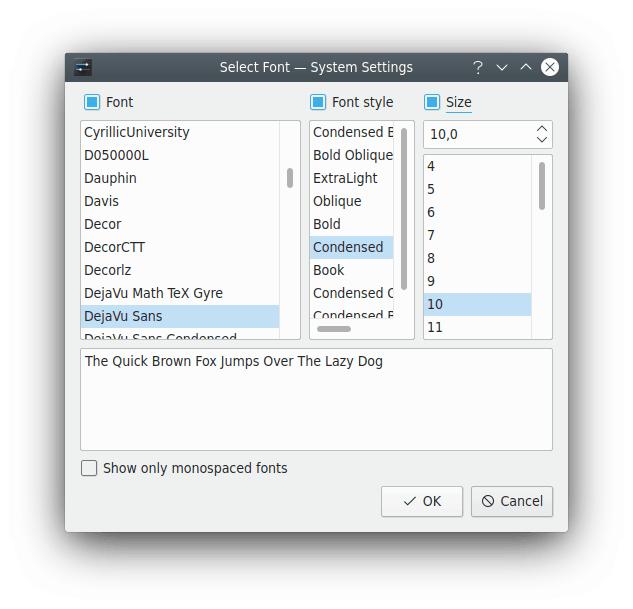
For example, if you've chosen several different fonts and realize they're all a size too big, which often happens when you change screen resolution, you can apply a new size to all of them without affecting your fonts and styles.
Anti-aliasing
Anti-Aliasing turns on smoothing of font edges.
Exclude range from anti-aliasing lets you specify a range of font sizes that aren't anti-aliased, using the two boxes below it.
You can also set the method and strength of anti-aliasing with sub-pixel rendering and hinting. If you aren't familiar with these, leave them alone.
Font DPI
Force font DPI uses a DPI other than your system's. You can check what DPI your X server is set to by running xdpyinfo | grep resolution in a terminal.
Some changes, such as anti-aliasing and DPI, only affect newly started applications.