Ecco overview and troubleshooting
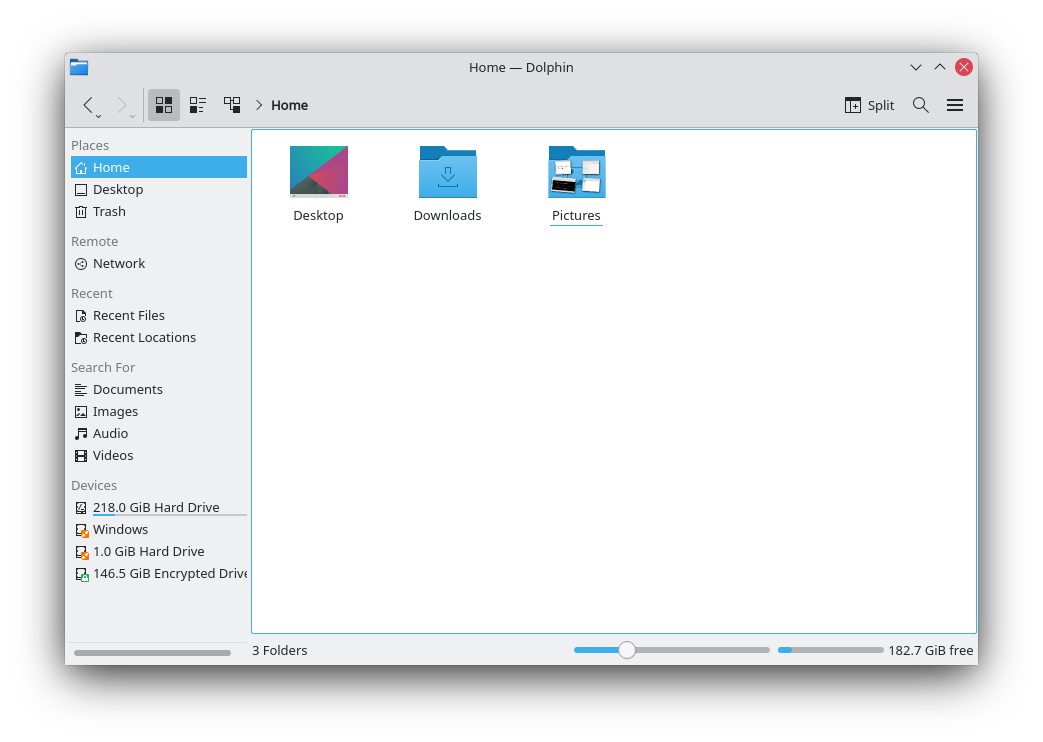
Ecco is a lightweight file manager designed with ease of use and simplicity in mind, while still allowing flexibility and customization. You can manage your files exactly the way you want to.
The guided tour explains how to use it, and the Ecco file manager page describes every command and setting.
Features
- A simple, dedicated file manager with a focus on usability
- A breadcrumb location bar
- Optional panels for convenient navigation and information
- Remote and special file systems through network and file protocols
- Tag files and folders, and find files by content, using file search
- Split view, to see and use two folders at the same time
- View settings that can be remembered independently for each folder
- Tabs
- An optional Information panel
- Essential information about files shown right in the view
- One click to change to an editable location bar
- A Folders panel for traditional navigation
- A terminal in the folder you are browsing
- Many functions controlled by keyboard shortcuts
Tutorials
Hints, tips and troubleshooting
Problem: When I choose the application that opens a file type, it seems to affect other file types too. It's as if Ecco can't tell the two file types apart.
Solution: The system probably doesn't know about one of the two file types, so it treats it as a different, known one. This is common with XML-based file types. Even with a file extension of their own, such as .xliff or .graphml, they are treated as any other XML file if the type isn't known, and open with the default application for XML files. To solve this, use the File Associations module to create an entry for the unrecognized file type.
Problem: Searching in Ecco doesn't find files you know are on your computer.
Solution: Update the file index. Ecco uses the file indexer to search for files, and it needs an up-to-date index to work. In a terminal, type:
balooctl6 check
Problem: There is no file transfer dialog.
Solution: Jobs such as file transfers are handled by default in the central notification system, and they also show in the task manager. To get a separate file transfer dialog, go to System Settings' Notifications module, clear Show in notifications and Show in task manager under Application progress, then log out and back in.