Panels

A panel is a widget container that can sit on any side of the screen. There can be several panels on the screen, or even on the same side. The default layout is one panel across the bottom of the desktop with these widgets: the application menu, the pager, the task manager, the system tray (including things like power management if you're on a laptop), the digital clock and peek at desktop.
Configuration
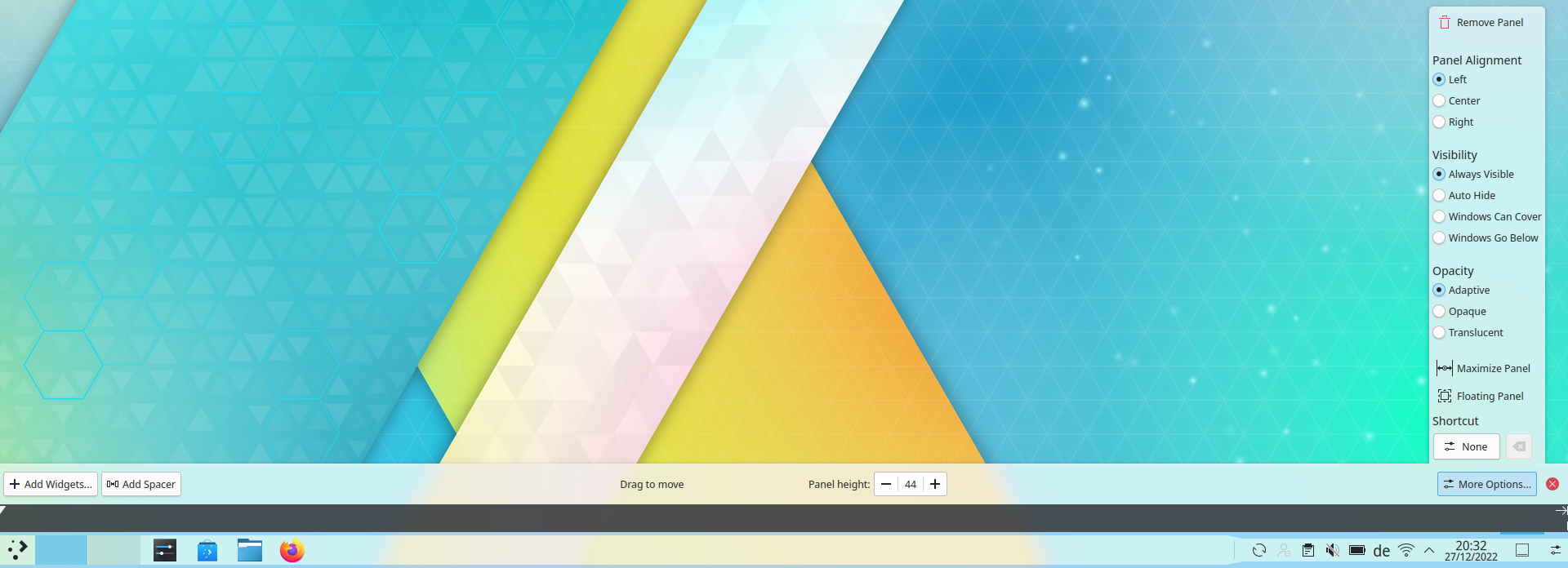
To configure a panel, right-click it and choose Enter Edit Mode, then click the panel to open Panel Settings, or right-click it and choose Show Panel Configuration.
Arranging widgets
In Edit Mode, widgets in the panel can be arranged by dragging them. Widgets align to the left of a horizontal panel and the top of a vertical one. You can center widgets by adding flexible spacers on both sides.
Panel Settings
- Position: Top, Right, Left or Bottom of the screen. Set Position… chooses by dragging.
- Alignment: The side of the screen the panel sits against, if it doesn't fill it.
- Width or Height: Fill width or Fill height, Fit content, or Custom.
- Visibility:
- Always visible: Keeps the panel visible at all times, even when windows are maximized.
- Auto hide: Hides the panel off screen until the mouse is placed near the screen edge.
- Dodge windows: Hides the panel only while a window would touch it.
- Windows go below: Lets windows go below the panel, even when maximized.
- Opacity:
- Adaptive: Makes the panel opaque when any windows are touching it, and translucent otherwise.
- Opaque: Makes the panel always opaque.
- Translucent: Makes the panel always translucent.
- Floating: Adds some margin around the panel when no windows are touching it.
- Focus shortcut: Sets a shortcut that focuses the panel when it isn't visible.
Add New adds Widgets…, which opens a sidebar from which you can drag widgets into the panel, a Spacer or a Margins Separator. A spacer normally uses as much space as possible. In Edit Mode, you can give it a fixed size instead.
Adding panels
Having more than one panel on your desktop is useful if you want a more flexible layout:
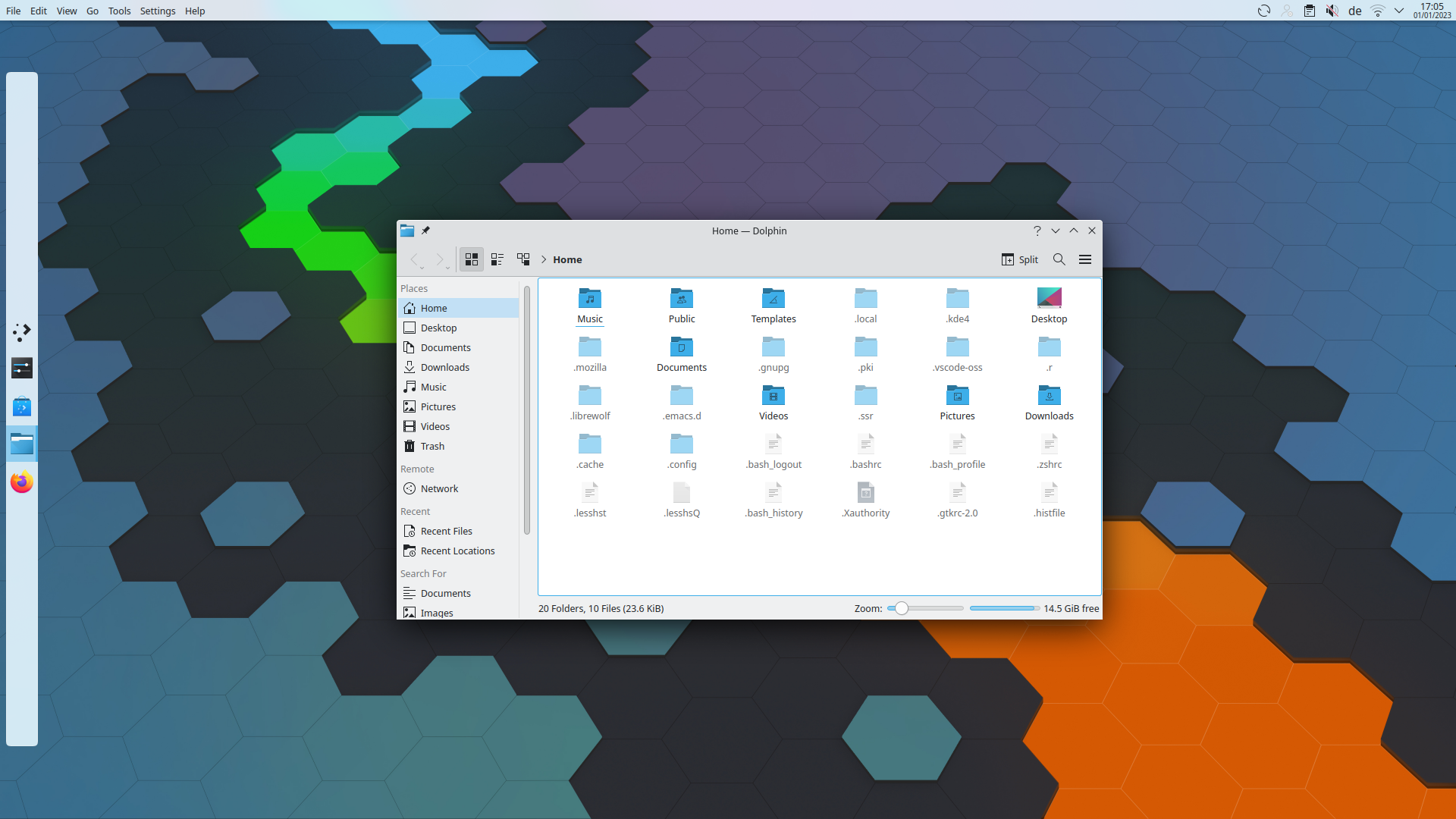
To add a new panel, right-click the desktop and choose Add Panel.
If more than one kind of panel is installed, you can choose between them. Default Panel creates a panel with all the default widgets, and Empty Panel adds a blank one with none in it.
Under the hood
If anything untoward happens to your panel, have a look at ~/.config/sonic-org.sonicde.desktop-appletsrc. The panel is classed as a containment, as is the desktop, which is home to all the widgets you put there.