Bluetooth
On this page you can configure your Bluetooth devices. If Bluetooth is off, click Enable to turn on the Bluetooth subsystem. If no adapter is found, the page asks you to connect an external one.
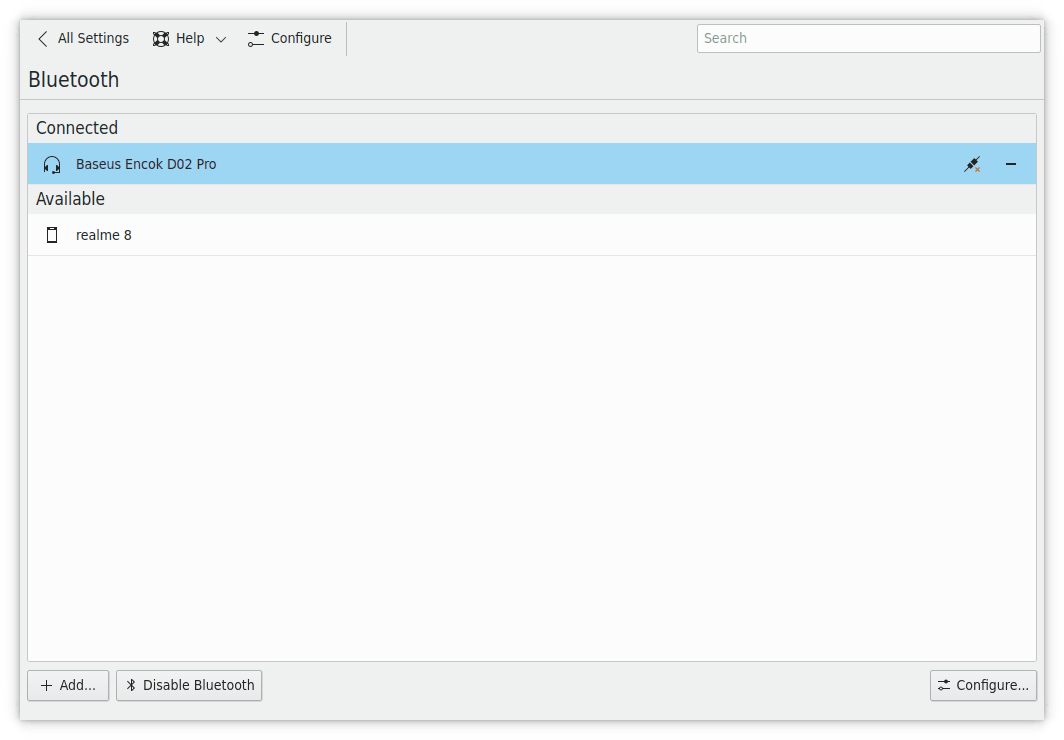
Pairing a device
Pair Device… adds a device to the list. Your surroundings are scanned for available devices. If the one you want isn't shown, see its manual for how to set it up.
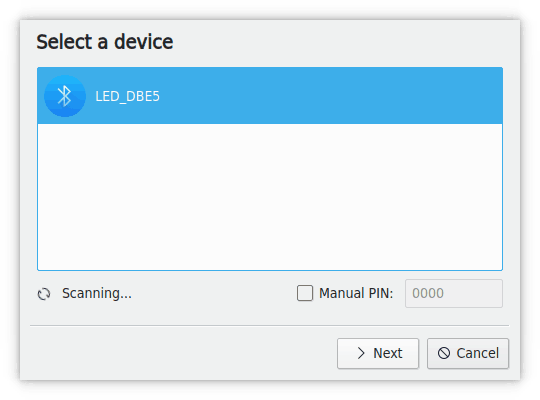
Set a Manual PIN if needed, and click the detected device to pair it. The procedure varies by device, so see its manual, but it's usually very straightforward.
Managing devices
Click a device in the list to see its Type, Address and Adapter, and to set its Name:
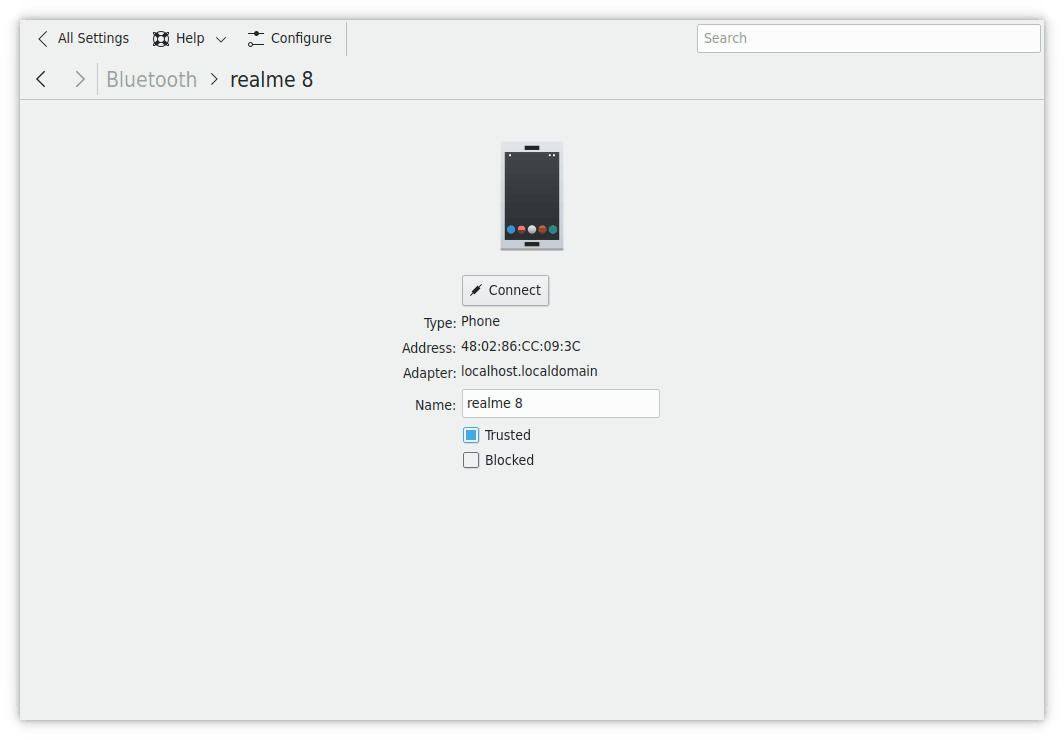
- Trusted: Marks the device as trusted, which the Accept for trusted devices setting below uses.
- Blocked: All incoming connections from this device are rejected. Unblock it first to be able to connect to it.
- Setup NAP Network… and Setup DUN Network…: Appear for devices that offer network services.
- Send File: Appears if the device is connected and ready to receive files.
The back button at the top returns to the main list.
When you hover over a device in the main list, buttons on the right let you Connect or Disconnect it, and Forget it, which removes it from the list.
Disable Bluetooth turns Bluetooth off.
General settings
Configure… changes the general settings:
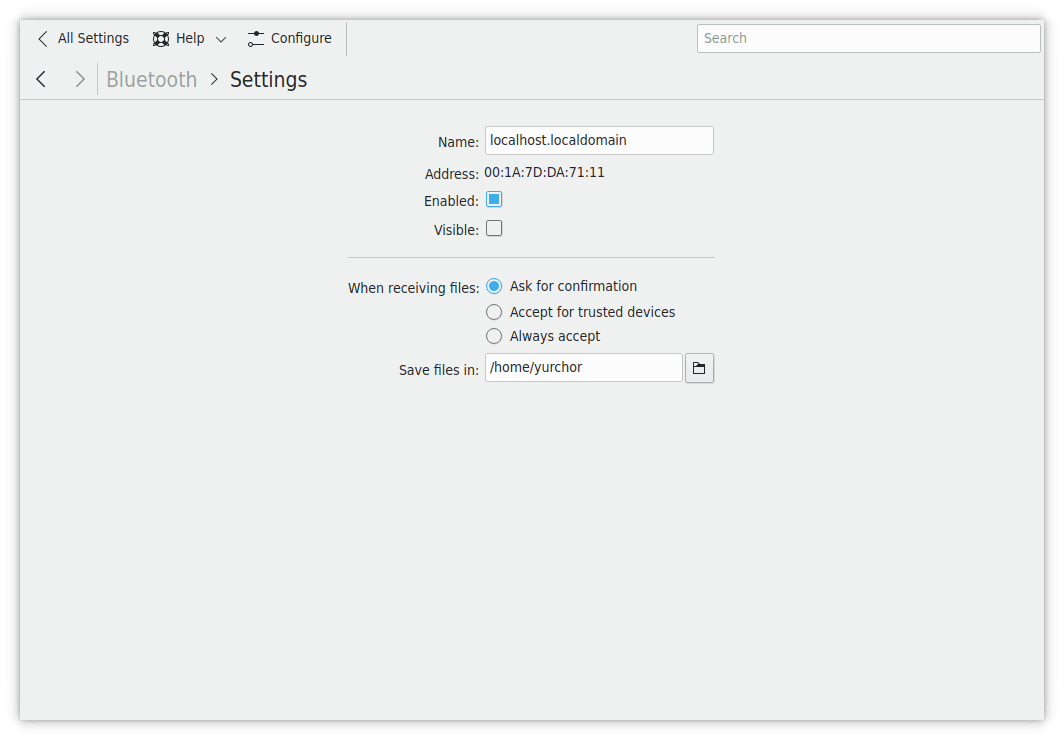
- Name: The name of your adapter.
- Enabled and Visible: Turn the adapter on, and make it visible to other Bluetooth devices.
- When receiving files: Ask for confirmation, Accept for trusted devices or Always accept.
- Save files in: The folder for received files.
- On login: Whether Bluetooth turns on, including Restore previous status.
In the system tray
By default, Bluetooth shows an icon in the system tray for control and status. A normal icon means all devices are disconnected, and an icon with a dotted line means some are connected.
Hover over it to see a summary of connected devices. Click it to show or hide the control panel. Right-click it for Configure Bluetooth, which opens this module.
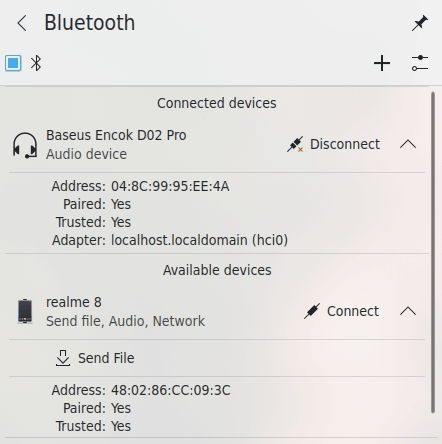
The top row of the panel has a switch to turn Bluetooth on or off, a button to pair devices and a button to open this module.
The main space shows your paired devices, with Connect or Disconnect on each. The button at the right of an item expands its properties.
Send File only appears if the device is connected and ready to receive files. This may need extra software. If so, follow the instructions and see your distribution's documentation.