Application Launcher
The Application Launcher is the default launcher of the desktop. In the default layout it sits at the far left of the bottom panel. Besides its main purpose, giving access to your applications, it gives you access to some places on your computer, your recently used documents and the options to end your session. These screenshots are older, so it may look different now.
Opening it
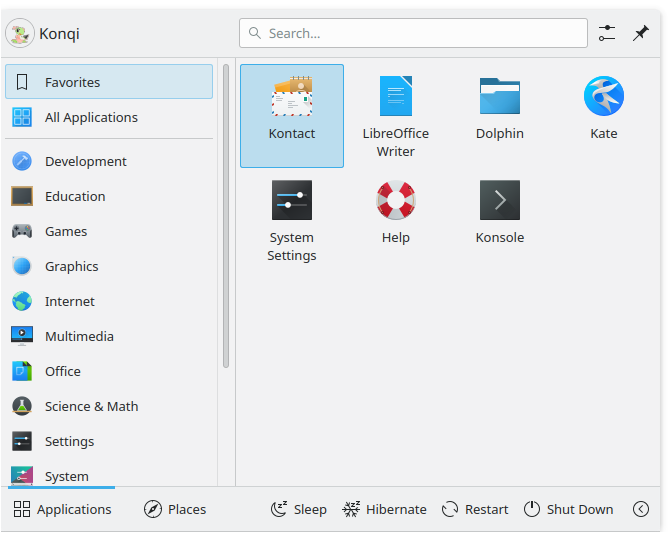
To open it, click its icon, usually at the far left of the panel at the bottom of the screen, or press Meta or Alt+F1. At the top you can see the search field, and at the bottom two tabs, Applications and Places, as well as power and session options.
The Applications tab
This tab gives you access to your applications and favorites.
Favorites
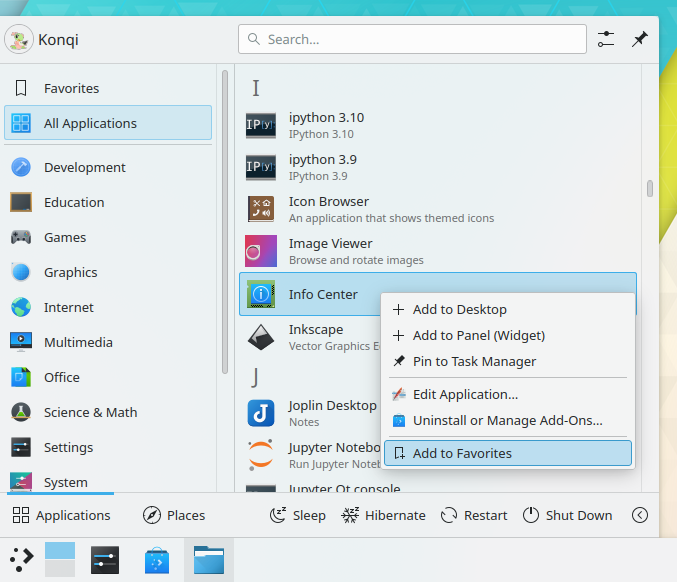
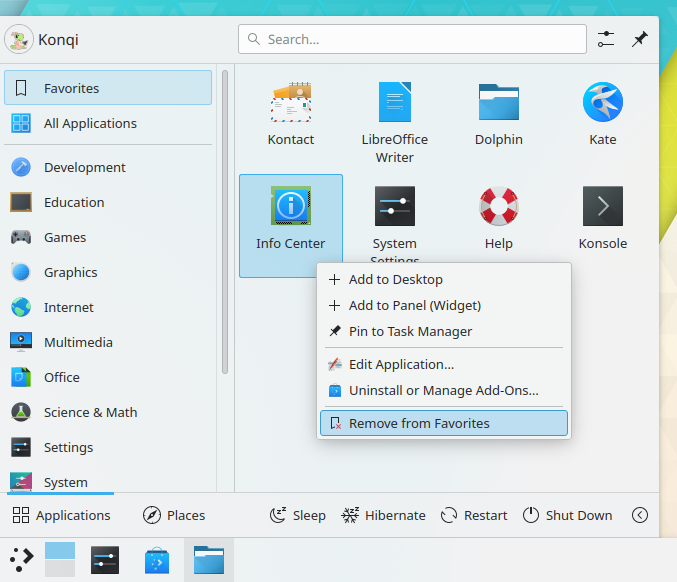
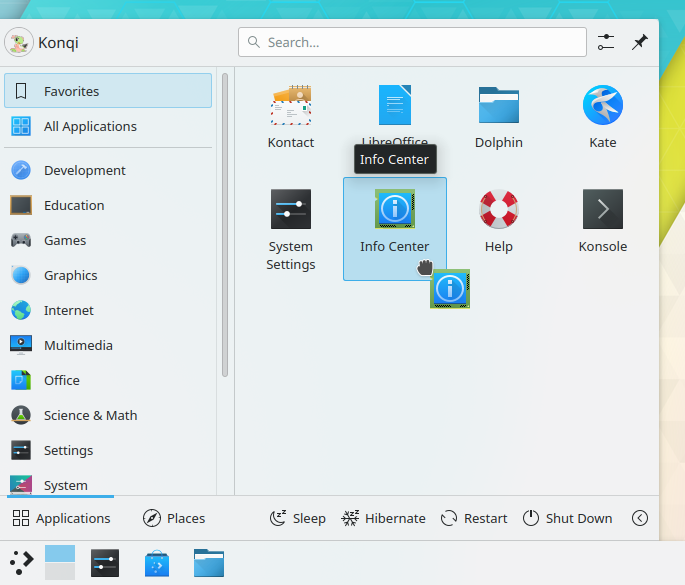
The favorites section is where you can pin your favorite applications. Drag and drop an entry to sort it your way. Right-clicking an entry gives you more options: you can remove it with Remove from Favorites, or copy it to the panel with Add to Panel or to the desktop with Add to Desktop.
Applications
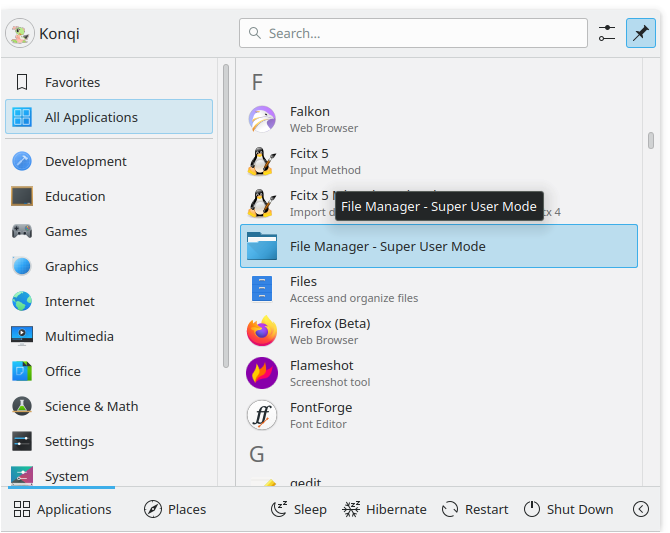
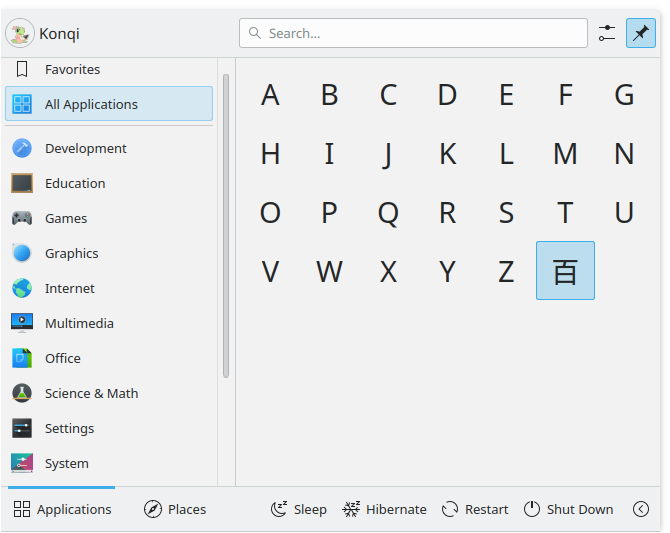
This section gives you access to all installed applications, divided into categories such as Office or Internet. There is also an All Applications section. Hover over a category to see the applications in it. Right-click an application to get options such as Add to Favorites, Add to Panel and Add to Desktop.
The Places tab
This tab gives you access to different places on your computer.
Computer
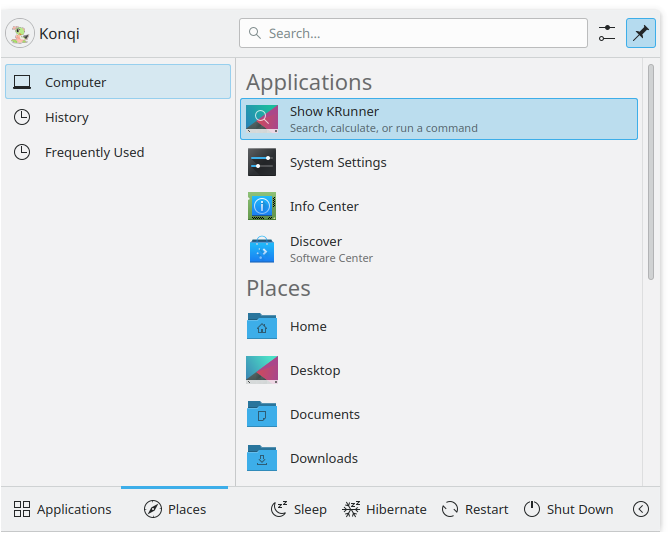
In the Computer section you'll find links to system applications such as System Settings, your favorite places, configured through Ecco, and available storage media. Right-clicking these entries offers to add them to the desktop or a panel.
History
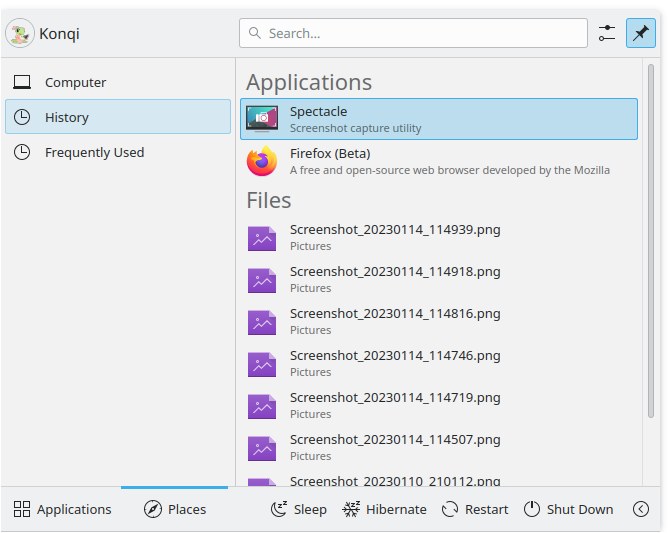
Your recently used applications and documents appear in this section. A right-click on an entry brings up the usual context menu, with options for clearing the history.
Frequently Used
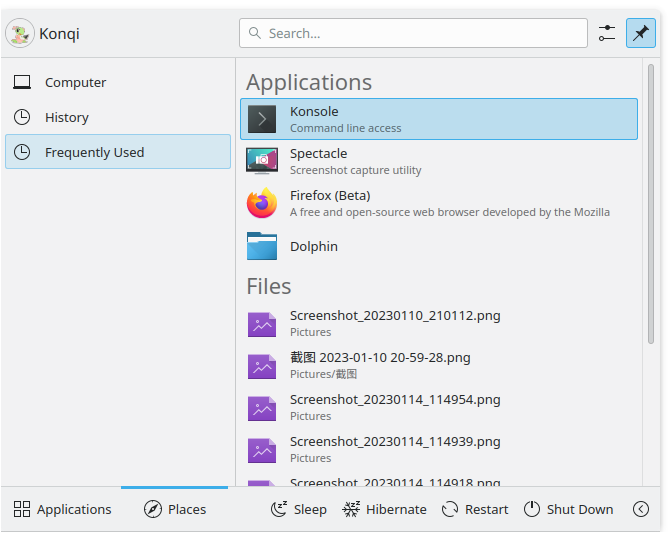
Your frequently used applications and documents appear in this section. A right-click on an entry brings up the usual context menu, with options for clearing the history.
Search field
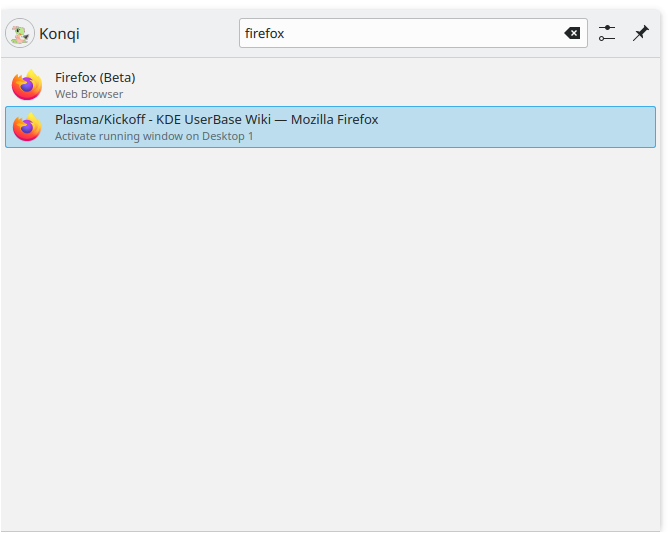
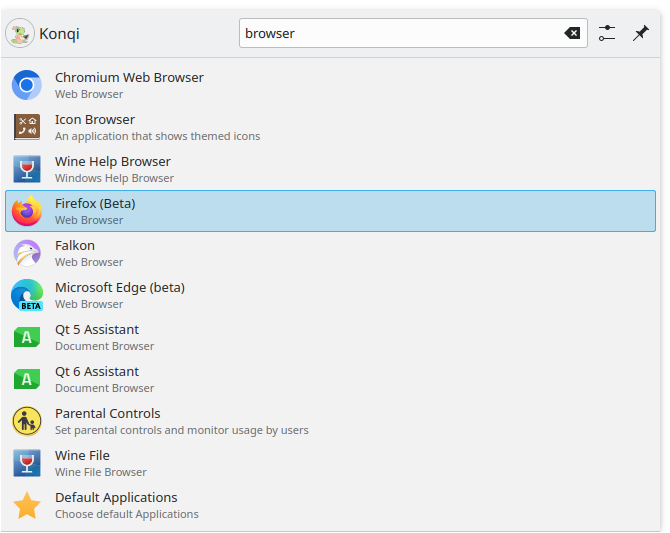
Instead of browsing through tabs and categories, you can simply enter a search term. The search field has focus when the menu opens, so you can just start typing. The search matches not only application names but also their descriptions. So if you need a browser but don't know the names of the installed ones, type "browser" to get a list of them.
Adding to the desktop and panel
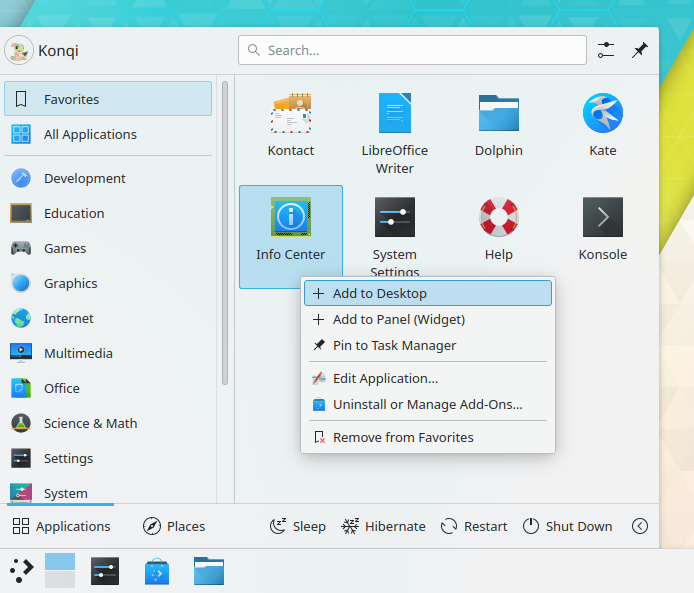
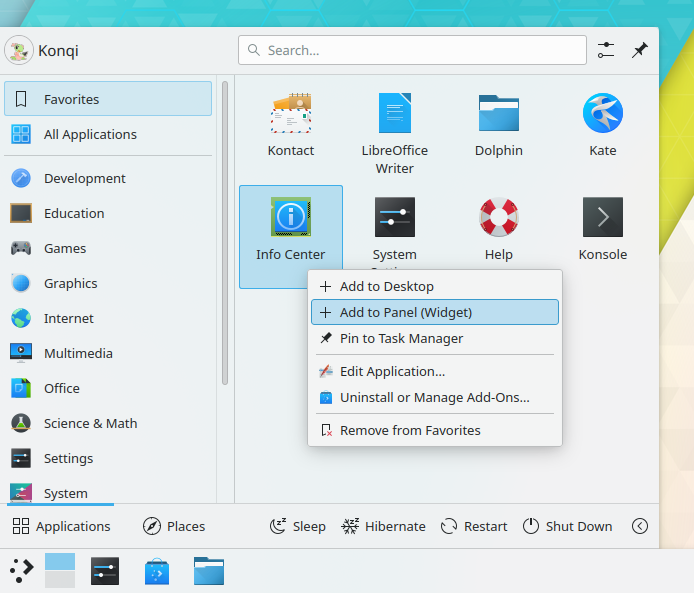
Applications can be added to the desktop and panels. Right-click one and choose Add to Desktop or Add to Panel.
Alternative launchers
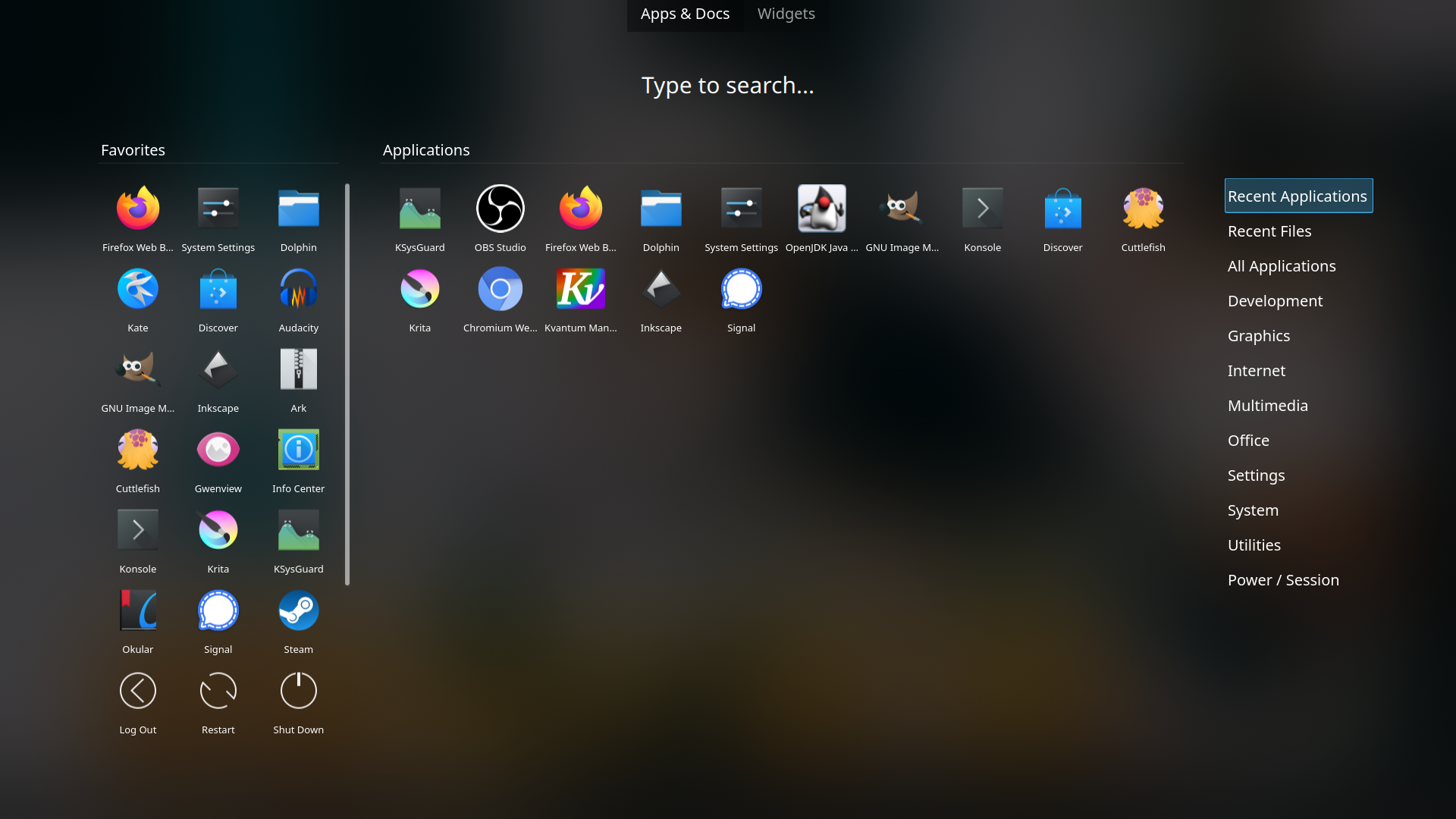
Other launchers, such as KRunner, may fit your needs better. See Application launchers for details.
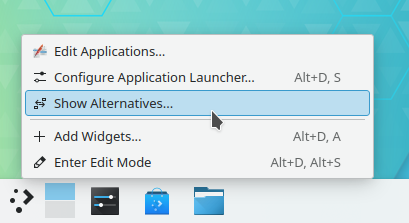
To change your launcher, right-click the launcher icon and choose Show Alternatives….