Global Theme
Global themes provide a common look and feel for many components at once:
- Desktop layout: An arrangement of panels and widgets, for example a bottom panel with a task manager and application launcher.
- Colors: The color palette used throughout the desktop and applications.
- Application Style: The appearance of interface elements such as buttons, menus and scroll bars.
- Window Decoration Style, Window Decoration Size and Titlebar Buttons layout: Window borders and titlebar buttons.
- Icons: The icons used throughout the desktop and applications.
- Desktop Style: The appearance of panels and widgets.
- Pointers: Mouse pointers.
- Fonts: The fonts used throughout the desktop and applications.
- Task Switcher: The overlay for switching between open windows, usually opened with Alt+Tab.
- Splash Screen: The loading screen shown when the desktop starts.
Applying a global theme can change all of these together, or only some of them. You can also apply individual components using the other System Settings modules.
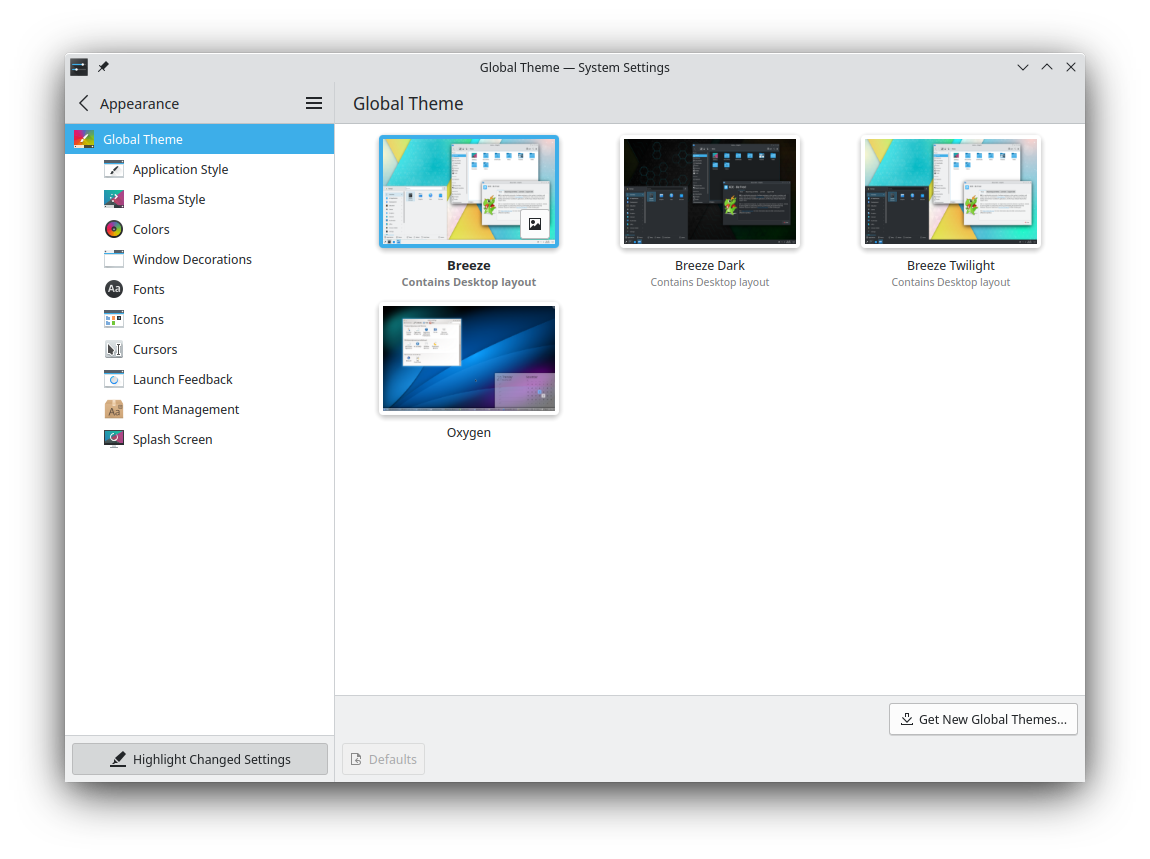
Applying a global theme
Click a theme and a dialog asks which parts to apply: Appearance settings and Desktop and window layout.
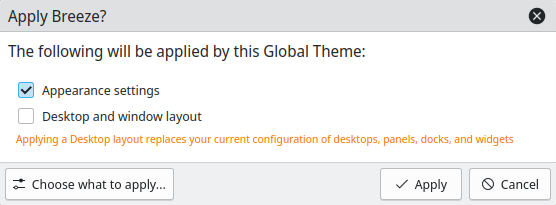
[!WARNING] Applying a desktop layout deletes your current set of desktops, panels, docks and widgets, and replaces them with the theme's.
Choose what to apply… shows every component, so you can choose them individually.
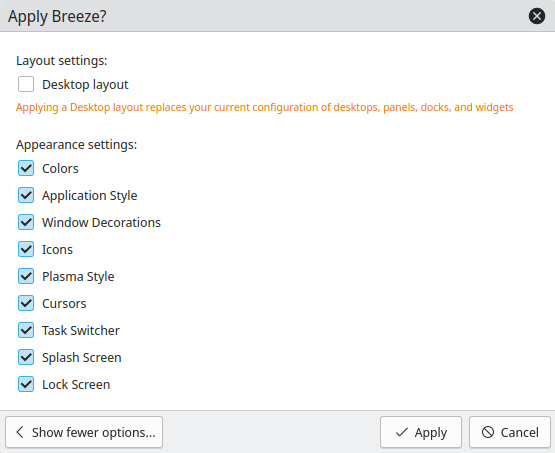
Click Apply to confirm your choice.
Switching to dark mode at night
Switch to Dark Mode at Night uses one global theme during the day and another at night. Choose the Light and Dark themes, and Configure Day/Night Cycle… sets the times.
Wait until idleness before switching waits until the computer has been idle for a set time, so the theme doesn't change while you're working.
Saving your own theme
Save Current Theme… saves your current appearance and theme settings as a new global theme. Give it a name, and add a preview image or take a screenshot.
Installing and removing themes
Get New… installs new global themes from third-party providers, which needs an Internet connection. Click Install on a theme, and it's available as soon as you close the dialog.
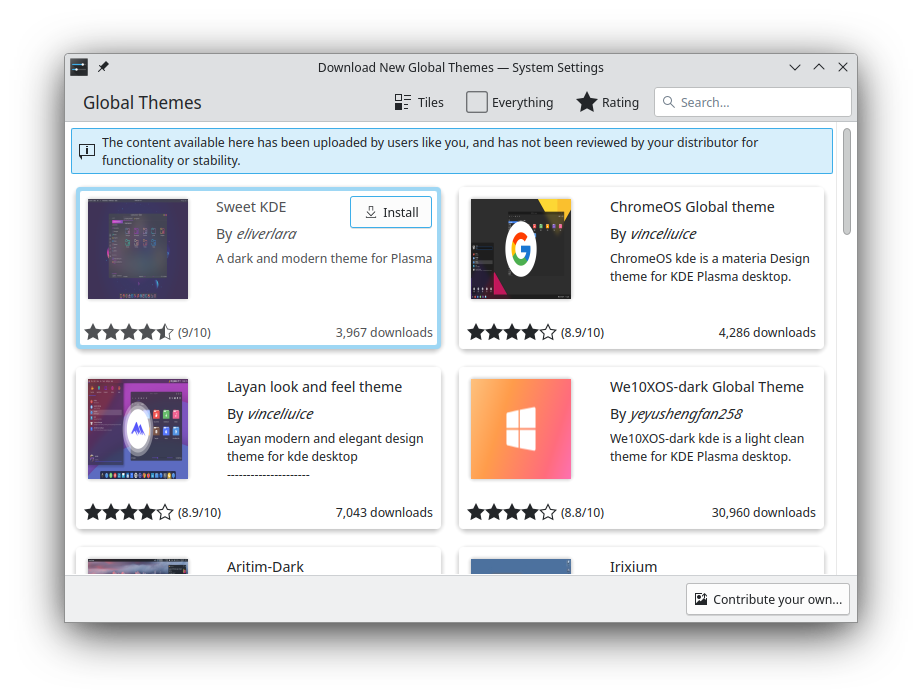
To remove a theme, hover over its thumbnail and click the trash button. You can only remove themes you've installed yourself.
If you'd like to create your own theme, see Themes and plugins.