Desktop tips
This page lists common tweaks you might make to set up a nice desktop.
Starting up
Don't restore the session on login
By default, applications that were open when you logged out can start again. To change this, open the Session module and choose Start with an empty session.
Desktop
Hide a System Tray icon
Right-click the arrow in the System Tray, and open its settings. For the item you want to hide, such as Networks, Clipboard or Battery, choose Never show (disable) or Show only in popup.
A classic "Start" menu
Right-click the launcher and choose Show Alternatives…, then Application Menu.
Don't sort windows in the Task Manager
Right-click an empty area of the Task Manager and open its settings. Set Sort to Manually and clear Keep launchers separate.
Hide windows from other desktops in the Task Manager
In the Task Manager's settings, under Show only tasks, tick From the current desktop.
Pin applications to the Task Manager
Start the application, right-click it in the Task Manager and choose Pin to Task Manager.
Hide the audio indicator in the Task Manager
In the Task Manager's settings, clear Show an indicator when a task is playing audio.
Turn off middle-click paste on the desktop
Right-click the desktop and choose Desktop and Wallpaper. On the Mouse Actions page, remove the Middle-Button action.
Turn off a screen corner
In the Screen Edges module, set the corner to No Action.
Switch desktops with Ctrl+Alt+Left and Right
In the Shortcuts module, under SonicWin, set Switch One Desktop to the Left to Ctrl+Alt+Left and Switch One Desktop to the Right to Ctrl+Alt+Right.
Don't switch desktops when scrolling over the wallpaper
Right-click the desktop and choose Desktop and Wallpaper. On the Mouse Actions page, remove the vertical scroll action that switches desktops.
Turn off the bouncing cursor when applications open
In the Pointers module, under Launch feedback, set Pointer feedback to None.
Turn off focus stealing prevention
In the Window Behavior module, on the Focus tab, set Focus stealing prevention to None.
Fix Alt+Click in games and other software
Holding a modifier key and dragging moves a window. If this conflicts with software designed for other systems, such as games, Inkscape or Blender, go to the Window Behavior module. On the Window Actions tab, under Inner Window, Titlebar, Frame, change Modifier key, or set the left button to do nothing to turn it off completely. The default is Meta.
Show the Alt+Tab popup as fast as possible
Normally it waits 90 milliseconds before trying to show the popup, which makes quick switches faster since nothing has to be drawn. To remove the wait, set DelayTime=0 under the group [TabBox] in ~/.config/kwinrc and reload SonicWin. These commands do that for you:
kwriteconfig6 --file ~/.config/kwinrc --group TabBox --key DelayTime 0
qdbus6 org.kde.KWin /KWin reconfigure
You can also turn off the highlighting of the selected window, by clearing Show selected window in the Task Switcher module.
Turn off the lock screen
In the Screen Locking module, turn off Lock screen automatically and Lock after waking from sleep.
Turn off the logout and shutdown confirmation
In the Session module, turn off Ask for confirmation.
Windows-style keys for moving windows
In the Shortcuts module, under SonicWin, set:
- Peek at Desktop: Meta+M
- Maximize Window: Meta+Up
- Minimize Window: Meta+Down
- Quick Tile Window to the Left: Meta+Left
- Quick Tile Window to the Right: Meta+Right
Change the titlebar height
In the Fonts module, change the size of the Window title font.
Hide titlebars when maximized
Set BorderlessMaximizedWindows=true under the group [Windows] in ~/.config/kwinrc and reload SonicWin. These commands do that for you:
kwriteconfig6 --file ~/.config/kwinrc --group Windows --key BorderlessMaximizedWindows true
qdbus6 org.kde.KWin /KWin reconfigure
Start an application on a discrete GPU
This is also known as using prime-run or the DRI_PRIME=1 environment variable.
Open the application launcher and right-click the application.
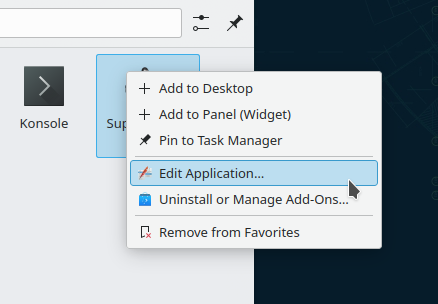
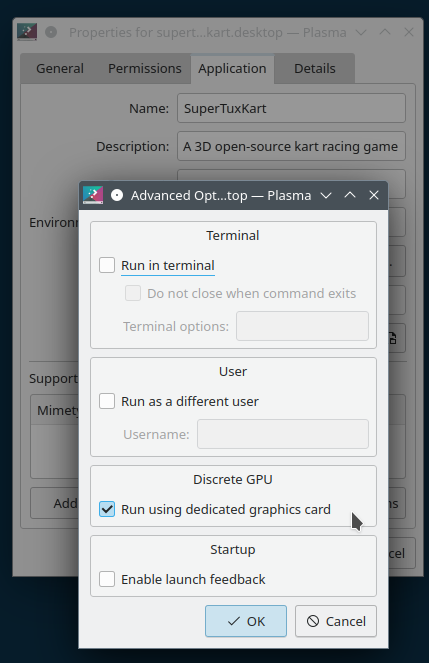
In the SonicDE Menu Editor, open the Advanced tab and tick Run using dedicated graphics card.
Meta key
Open the launcher with the Meta key
This is the default. If it isn't working, make sure your launcher widget has a global shortcut such as Alt+F1 set. Right-click the launcher, choose Configure Application Launcher…, and on the Keyboard Shortcuts page set the shortcut to Alt+F1.
Don't open the launcher with the Meta key
In the Shortcuts module, under SonicShell, find Activate Application Launcher and turn off Meta.
Lock screen
Change the lock screen wallpaper
In the Screen Locking module, set the wallpaper on the appearance settings.
Ecco
Double-click to open files
This is the default. It's set by Clicking files or folders in the General Behavior module.
Always show hidden files
Use View > Adjust View Display Style…, tick Show hidden files, apply it to all folders and make it the default. See the View Display Style dialog.
Browse archives with Ecco
In Ecco's settings, on the Interface page, tick Browse compressed files as folders.
Clean up the context menu
In Ecco's settings, on the Context Menu page, clear the entries you don't want.
Show the Terminal panel
Use View > Show Panels > Terminal, or press F4.
Paste into the Terminal panel
Use Settings > Configure Keyboard Shortcuts…. For Paste, set the alternative shortcut, Shift+Insert by default, to none.
Turn off file indexing
You may want to do this if the baloo_file process slows your system down, or if ~/.local/share/baloo/index uses too much space. Run balooctl6 indexSize to see how the database's space is used.
To turn it off, clear Enable File Search in the File Search module.
Virtual machines
Stop the Meta key opening the host's launcher
For VirtualBox, for example:
- Run the virtual machine.
- Press the host key, right Ctrl.
- Press Alt+F3, then choose More Actions > Configure Special Application Settings….
- Under window matching, set Window class to Exact Match and
virtualbox machine. - Add the Ignore global shortcuts property, and set it to Force and Yes.
This also stops Screenies' screenshot shortcuts from working while the virtual machine's window is focused.
Firefox
Use SonicDE's file dialog
- Make sure you have the
xdg-desktop-portalandxdg-desktop-portal-sonicdepackages installed. - Go to
about:configin a new Firefox tab. - Search for
xdg-desktop-portal. - Set
widget.use-xdg-desktop-portal.file-pickerto 1. - Restart Firefox.