Saving screenshots with a shortcut
The usual way to capture your screen is to press the Print Screen key. Screenies then pops up, and lets you capture:
- the complete screen
- single windows
- a rectangular region on the screen
Some people want their screenshots stored without any further steps. This is useful during documentation work, when you want to take a lot of screenshots without interrupting your work.
Shift+Print Screen already captures your entire desktop. To store the result without further steps, set up these two things:
- In Screenies' settings, go to General and turn on Save file to default folder under After taking a screenshot.
- If you'd like a different key, open the Shortcuts module in System Settings, select Screenies under Applications, and change the shortcut of its full screen capture action. Then click Apply.
The older screenshot below shows the same idea in a module that no longer exists.
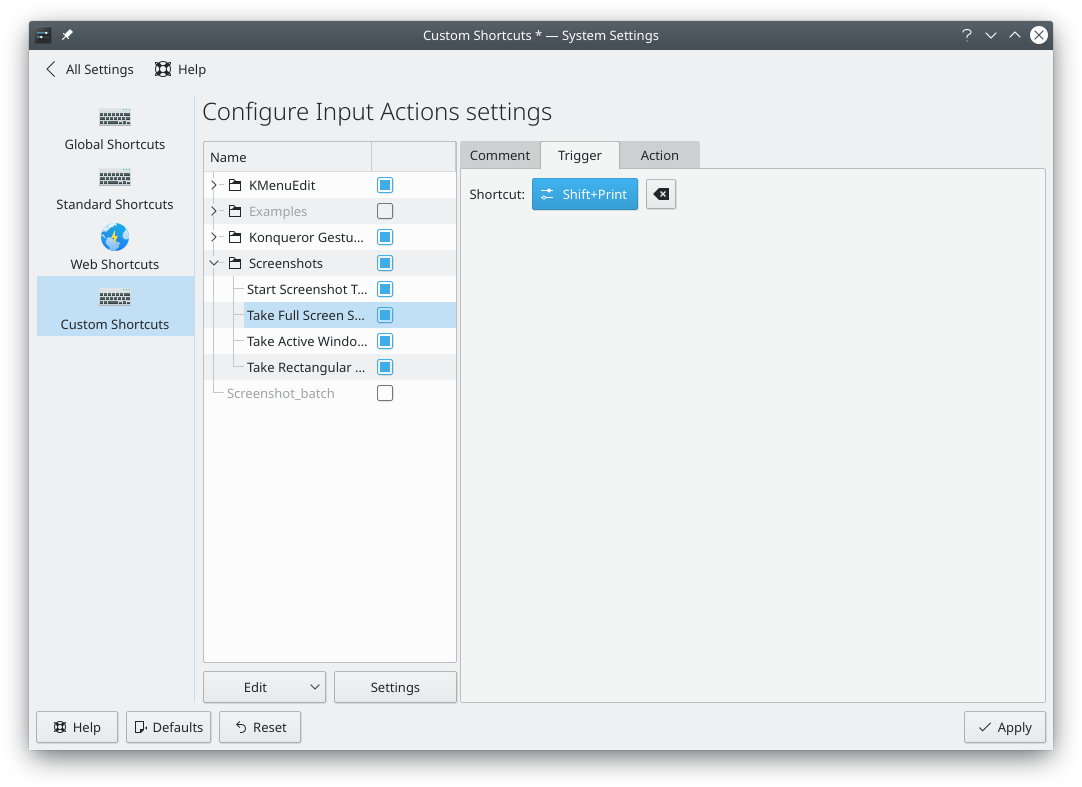
Now whenever you press Shift+Print Screen, your screen is saved to your Pictures folder with a timestamp in its name, for example Screenshot_20190107_224731.png.
To take screenshots from your own command without opening a window at all, use sonic-screenies --background --fullscreen. Add it in the Shortcuts module under Commands to give it a key.