KRunner
KRunner, opened with Alt+Space or Alt+F2, is the launcher built into the desktop. Its basic function is to start programs from a sort of mini command line, but plugins called runners extend it to help you with a lot of tasks.
Note: Your distribution may package some runners separately, so you may need an additional package for some of what's listed here. A large number of active runners can slow down KRunner's start. Adjust them with the settings icon next to the text field.
Features
This incomplete list gives some basic examples. Discover more by clicking the question mark icon in KRunner.
Start and stop applications
Runner: Applications
You can start a program by typing its name, or press the down arrow for a list of the most recently used ones.
You can type a single character and KRunner starts finding matches, from the applications in your application menu.
| Input | Output |
|---|---|
ter |
Starts Terminal |

You can use KRunner to stop applications too (runner: Terminate Applications). Type the keyword kill followed by a process name, and KRunner offers to close the application (SIGTERM) or force it to quit (SIGKILL). It matches partial process names to running processes.
The keyword kill can be changed in the Terminate Applications runner's settings, to avoid confusion with the shell command kill, which takes process IDs.
Direct installation
Runner: Software Center
If you look for an application that isn't installed yet, KRunner can suggest matching applications. This needs a software center on your system that can handle them. SonicDE doesn't ship one.
Issue shell commands
Runner: Command Line
As well as applications in the menu, KRunner can run shell commands, including starting binaries. When you enter shell commands, KRunner doesn't accept partial commands or offer auto-completion.
Running a command this way offers additional options: you can open a terminal and run the command there, which is useful if you want to read its output, or run the program as a different user.
| Input | Output |
|---|---|
ls ~/Documents |
Lists the contents of ~/Documents (best in a terminal) |
cp ~/Documents/myFile ~/myFile |
Copies myFile from ~/Documents to ~/ |
If you like the command line, you may appreciate the integration with man pages. Type a command name preceded by # or man:/ to open its man page, formatted for easy reading.
| Input | Output |
|---|---|
#ls |
Opens the manual for ls |
man:/grep |
Opens the manual for grep |
Browse websites
Runners: Bookmarks, Locations, Web Search Keywords
You can start typing a website's address to open it in your default browser. You can also type the name of a browser bookmark. With browser integration, KRunner can also find your open tabs and your browser history.
| Input | Output |
|---|---|
myBookmark |
Opens the bookmark in a browser |
wikipedia.org |
Opens Wikipedia in a browser |
KRunner already knows your web search keywords, so you can use them directly.
| Input | Output |
|---|---|
gg:SonicDE |
Searches Google for SonicDE |
wp:krunner |
Searches Wikipedia for KRunner |
Open files, folders and devices
Runner: Locations
KRunner can open files and folders on your computer, and browse remote machines too, using network and file protocols such as fish: for SSH and smb: for Samba.
| Input | Output |
|---|---|
file:/home/ |
Opens /home in Ecco |
fish:you@server.com |
Opens fish:/you@server.com/ through the fish protocol, file transfer over SSH |
smb:myWindowsBox |
Opens smb:/myWindowsBox through Samba |
If you don't know the path to a file, type its name. If it's a recently opened file, KRunner lists it. If you've turned on File Search, it can also find the file by its indexed contents. KRunner opens folders you've bookmarked in Ecco's Places panel if you type their name. It can also reach devices on your system, whether mounted or not, and offers options specific to each device.
| Input | Output |
|---|---|
Home |
Opens your Home folder in Ecco |
myFlashDrive |
Shows options to mount or open the contents of myFlashDrive |
Multitask with sessions, windows, desktops and activities
KRunner can start the saved Terminal profiles and Kate sessions on your system. Type the application's name, or the name of the profile or session.
If you have too many windows open, type a window's title and switch directly to it. You can do the same with the name of a virtual desktop or an activity. KRunner finds a match as soon as you've typed three characters.
KRunner can also switch desktop sessions. Type the keyword switch or new session to start a separate session, and use switch to go back and forth between sessions.
| Input | Output |
|---|---|
Desktop 1 |
Switches to virtual desktop Desktop 1 |
myWorkActivity |
Switches to the activity myWorkActivity |
switch |
Shows options to switch to an existing session or start a new one |
new session |
Starts a new session |
Be on time
You can get the current date or time by typing the keywords date or time. Selecting the result copies it to your clipboard, so you can paste it elsewhere. The format follows your system settings.
| Input | Output |
|---|---|
date |
Today's date is … |
time |
The current time is … |

You can also get the date and time elsewhere, by giving the time zone or a city listed in the time zone database.
| Input | Output |
|---|---|
time UTC |
The current time in UTC is … |
time oslo |
The current time in Europe/Oslo is … |
time kolkata |
The current time in Asia/Kolkata is … |
Calculator
KRunner has a versatile calculator, which you call by starting or ending a calculation with an = sign. As well as basic arithmetic, you can use scientific functions like sqrt(), sin() and log(). There is a list of the supported functions. Trigonometric functions like sin() and cos() expect the angle in radians. KRunner understands pi in expressions.
| Input | Output |
|---|---|
32*12 = |
384 |
= sqrt(4) + 32*sin(30*pi/180) |
18 |

It also supports combinatorics functions like perm() and comb().
| Input | Output |
|---|---|
= perm(10,5) |
30240 |
= comb(10,5) |
252 |
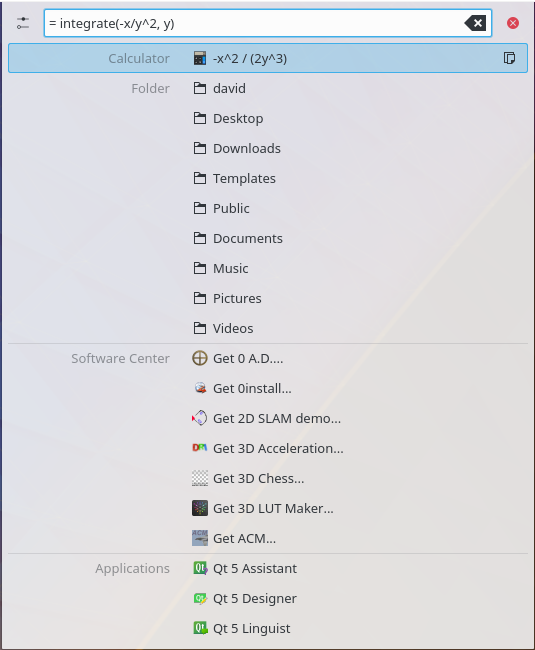
It can handle symbolic mathematics, including integration and differentiation of expressions.
| Input | Output |
|---|---|
= integrate( -x/y^2, y ) |
-x/y |
diff( log(x) ) = |
1/x |
It can also find the roots of polynomial functions.
| Input | Output |
|---|---|
= solve( x^2 + 4*x - 21 = 0 ) |
[3, -7] |
It handles units as part of calculations.
| Input | Output |
|---|---|
= 2.5 kg * 10 m/s^2 |
25 N |
220 V / 10 A = |
22 ohms |
Since KRunner understands most units, you can use it to convert them quickly. Unit conversions don't need an = sign.
| Input | Output |
|---|---|
30 F |
-1.11111 degrees C (°C), 273.039 K, … |
27.8 km |
1.09449e+06 inches (in), 17.2742 miles (mi), … |
5 gallons in liters |
18.9271 liters (l) |
KRunner knows currencies too, using exchange rates fetched from the European Central Bank. The amounts below are only examples.
| Input | Output |
|---|---|
1 dollar |
0.657002 pounds sterling (GBP), 0.742501 euros (EUR), … |
125 euros |
110.606 pounds sterling (GBP), 15,785 yen (JPY), … |
30 JPY in RUB |
9.40731 rubles (RUB) |
Spell checking and special characters
KRunner can tell you whether your spelling is correct and suggest corrections. The default keyword to start the spell checker is spell, which you can change.
| Input | Output |
|---|---|
spell linux |
Suggested words: Linux, lynx, … |
KRunner can also give you special characters if you enter the character's hexadecimal Unicode value, preceded by #.
| Input | Output |
|---|---|
#03b2 |
β |
#00b1 |
± |
Manage your computer
You can open System Settings modules directly from KRunner. If you want to change something, type related terms and KRunner finds the module with the settings you want.
| Input | Output |
|---|---|
keyboard |
Opens the Keyboard module |
fonts |
Opens the Fonts module |
KRunner can also adjust the screen brightness with the keywords screen brightness. You can give a percentage or dim the screen halfway or fully. Other keywords suspend your computer, log out, shut down or restart.
| Input | Output |
|---|---|
screen brightness 100 |
Sets the screen brightness to 100% |
sleep |
Suspends the computer to RAM |
lock |
Locks the screen |
restart |
Restarts the computer |
shutdown |
Shuts down the computer |
Usage
Open KRunner
The easiest way to open KRunner is its global shortcut, Alt+Space or Alt+F2 by default. You can also start it from the command line by typing krunner.
Use KRunner
Use Tab or Ctrl+J and Shift+Tab or Ctrl+K to move down and up the results. Use the arrow keys to move between a result's options, if it has any. Use Enter or a left click to select a result.
Discover KRunner
Click the settings icon to bring up the configuration, where you can enable, disable and configure the runners that handle your searches. The Search settings also change where on the screen KRunner appears.
Clicking the question mark icon opens a scrollable list explaining the syntax of all the available runners. This is a good way to discover new functionality.
Tips
You can use KRunner in a special "single runner" mode, where only one active runner handles your searches. Not every runner supports this, but many do. Open the Shortcuts module and look under KRunner to see what's available. Set a global shortcut for the mode you want, and start KRunner in that mode with it.