Task Manager

The Task Manager gives you easy access to running applications. It sits in the middle section of the panel. If an application's window is behind other windows or minimized, click its entry in the Task Manager to bring it up, ready for input.
The Task Manager widget
The Task Manager is a widget, so you can place it anywhere. For example, you could add a new panel at the top of the screen and put it there, or place it on the desktop. You can even have several copies in various places.
Whenever you start an application, a new entry appears in the Task Manager, showing the application's icon and the title of the window that opened.
If you click the entry for the active window, that window is minimized. If there are still windows that aren't minimized, the frontmost of them becomes active. If you click the entry for a minimized window, it appears in front of all other windows and becomes active. The same happens if you click the entry for a window behind other windows.
You can also right-click an entry to bring up the context menu, which has a number of options. For example, you can set which virtual desktops the window appears on, and close the window.

If you have many windows open, the entries may be grouped. Clicking a group shows its windows, which you can use just like ordinary Task Manager entries. Right-clicking a group lets you close all the windows in it.
You can also activate windows by holding Alt while pressing Tab one or more times. This goes through all windows, whether displayed or minimized.
Note: Some applications don't open a window when started, so they don't show up in the Task Manager. Instead, they have an icon in the System Tray.
Configuration
To open the Task Manager's settings, right-click it and choose Configure Task Manager…. If you have trouble clicking it rather than one of its tasks, enter Edit Mode first, so that clicking anywhere on the Task Manager works.
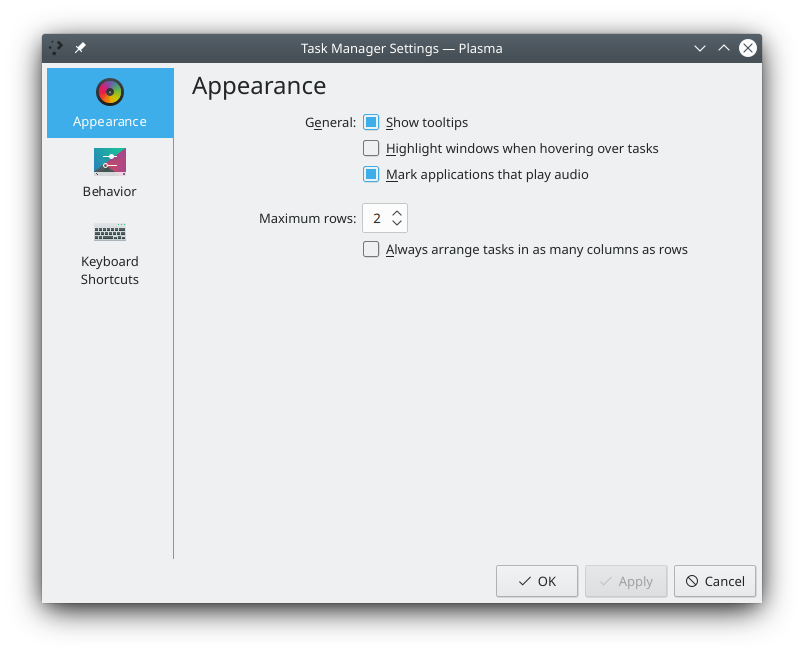
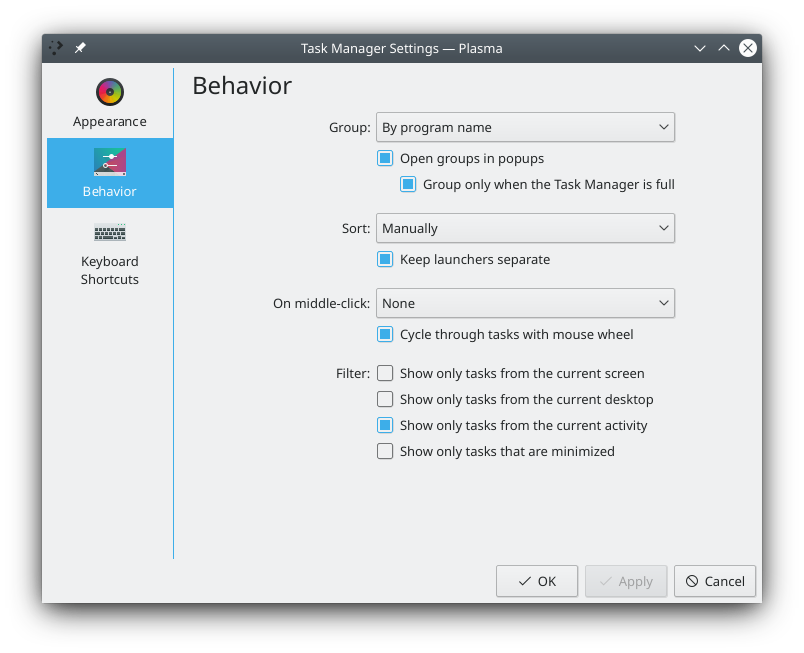
These settings are particularly useful:
- Grouping and sorting: In the Group list, choose By program name or Do not group. You can also choose Group only when the Task Manager is full. In the Sort list, choose Do not sort, Manually, Alphabetically, By desktop, By activity or By horizontal window position.
- Filters: Several options limit the tasks shown to the ones you want to see: those from the current screen, the current desktop or the current activity, or those that are minimized.
- More than one row: If you use many applications at once, it can help to set a multi-column view on the Appearance page.
- Window previews: Show small window previews when hovering over tasks shows a small preview of the task.
- Audio: Show an indicator when a task is playing audio marks applications that play audio with a small loudspeaker symbol, which makes it easier to tell where sound is coming from.
Alternative task managers
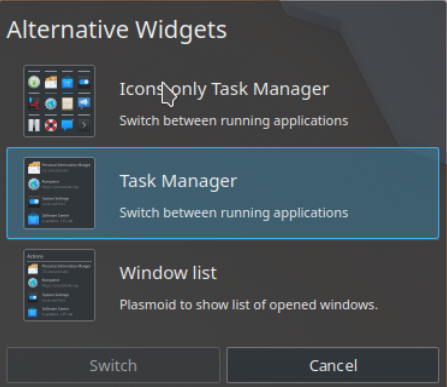
You can swap the standard Task Manager for two other options. Right-click the Task Manager and choose Show Alternatives…. One option is the Icons-Only Task Manager, and the other is the Window List.
Icons-Only Task Manager

The Icons-Only Task Manager shows tasks by their icon only, without the window title. This needs less space, so more tasks fit. It has by and large the same settings as the standard Task Manager.
Window List
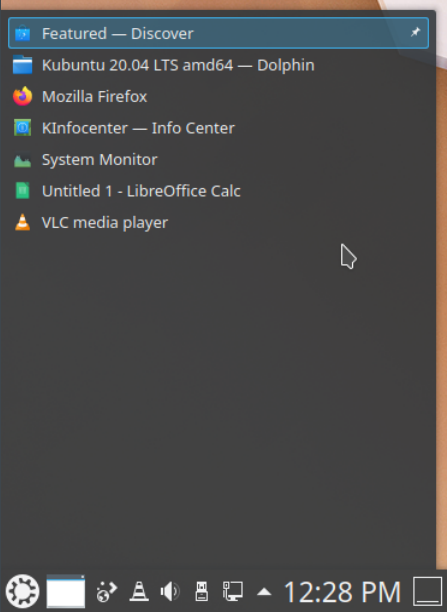
With the Window List, the task manager shrinks to a single icon. Clicking the icon opens the list of tasks. This widget has virtually no settings.