Window Rules
Window rules let you set an application's window attributes. For example, when an application starts it can be forced to always run on virtual desktop 2, or a defect in an application can be worked around by forcing its window above others.
Many of these settings are the ones you can set for all windows in Window Behavior, but some are more detailed. They include geometry, placement, whether a window is kept above or below others, focus stealing prevention and translucency. They only apply if you use SonicWin, the desktop's window manager.
The rule list
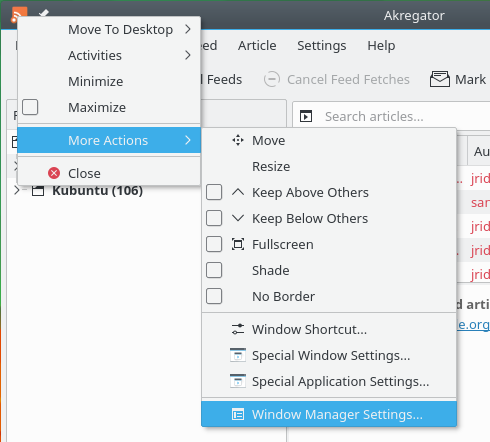
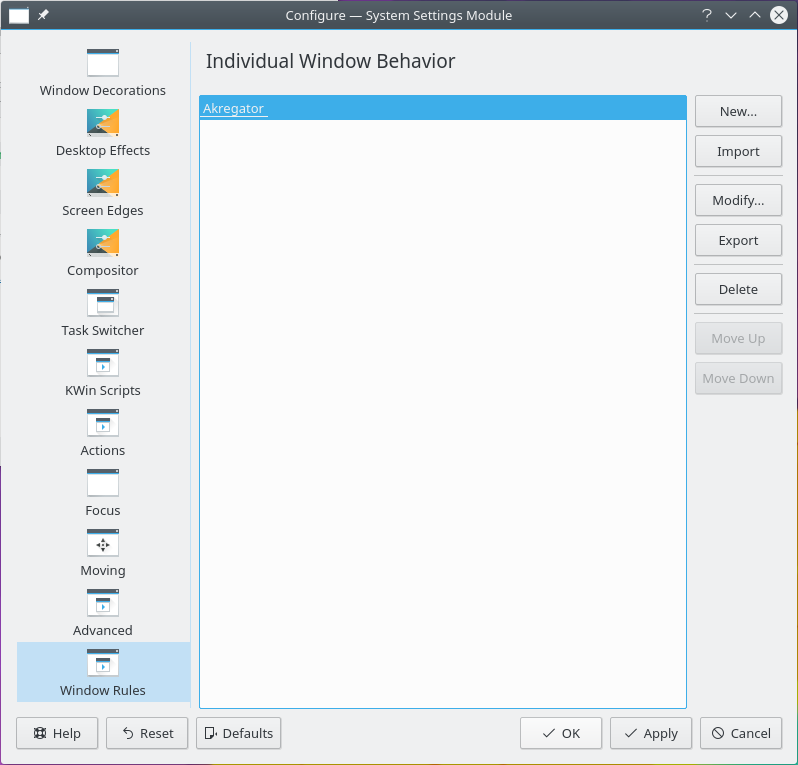
You can open this module from System Settings, or by right-clicking a window's titlebar and choosing More Actions then Configure Special Window Settings… or Configure Special Application Settings…, which fills in the window's details for you.
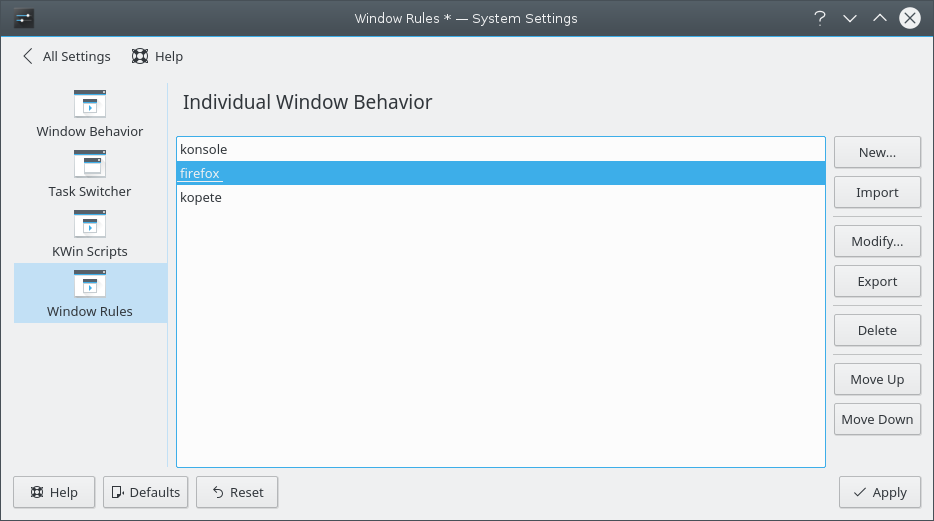
The main page lists your rules:
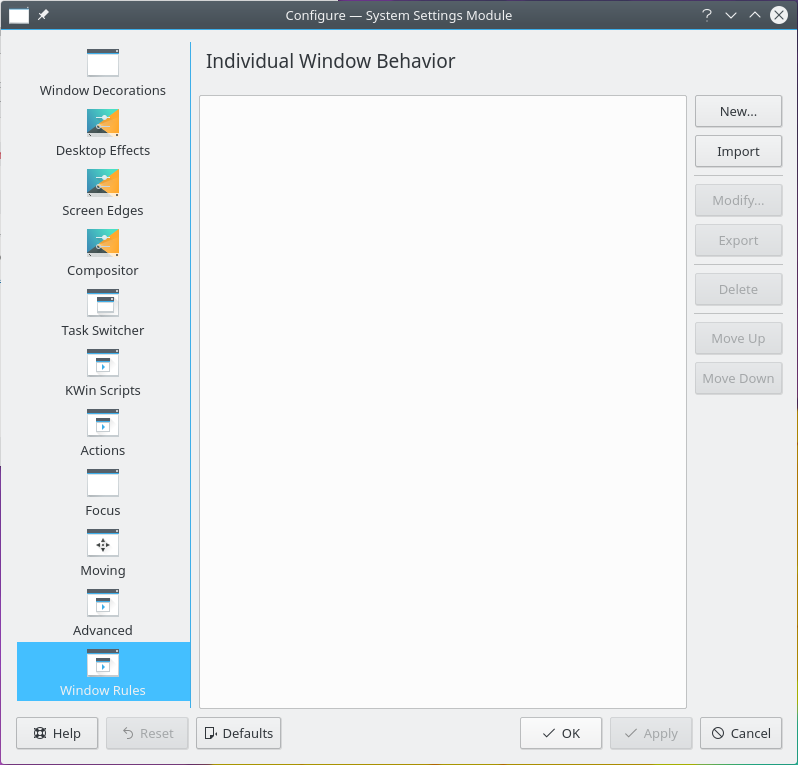
- Add New… creates a rule. Each rule in the list has buttons to Edit, Duplicate and Delete it.
- Import… and Export… share rules with others as
.kwinrulefiles. Choose which rules to export. - Drag rules to set the order they're evaluated in.
Rule evaluation
When an application starts, or the rules change, they're evaluated from the top of the list to the bottom. For all rules that match a window, the combined set of attributes is applied before the window is displayed.
If two or more matching rules set the same attribute, the setting in the first rule in the list is used.
[!TIP] You can treat an application's child windows differently by putting the more restrictive rules first. See the example with a child window.
Editing a rule
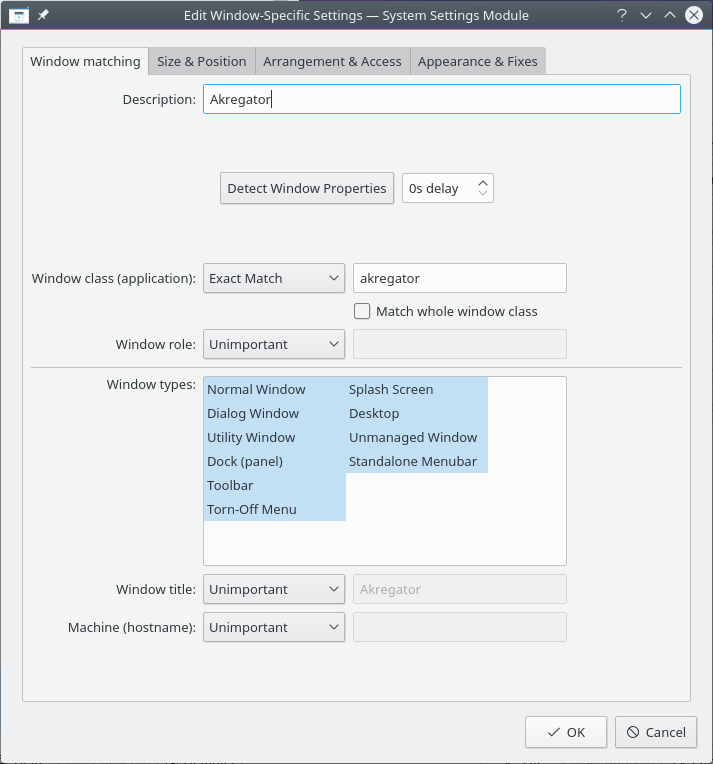
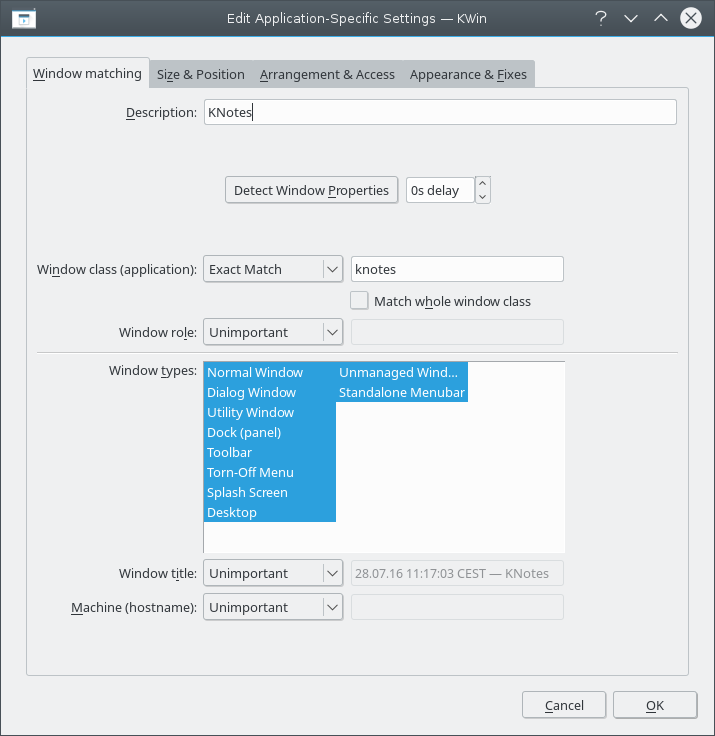
Each rule has a Description, which is shown in the list, its window matching criteria, and any properties you've added. Click Add Property... to choose which ones to change.
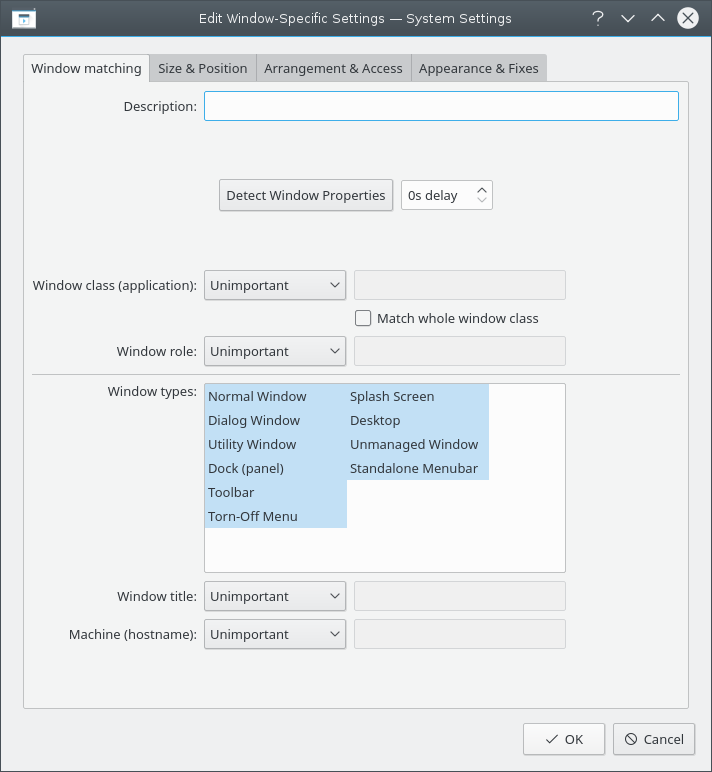
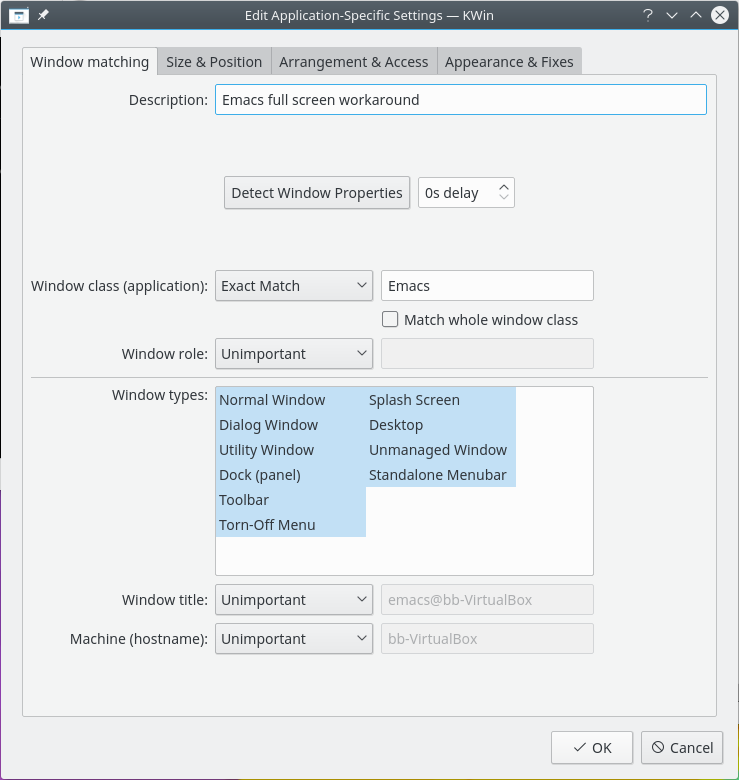
Window matching
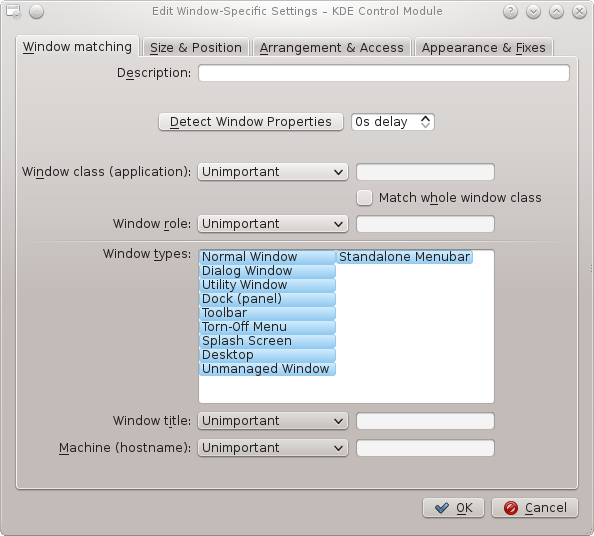
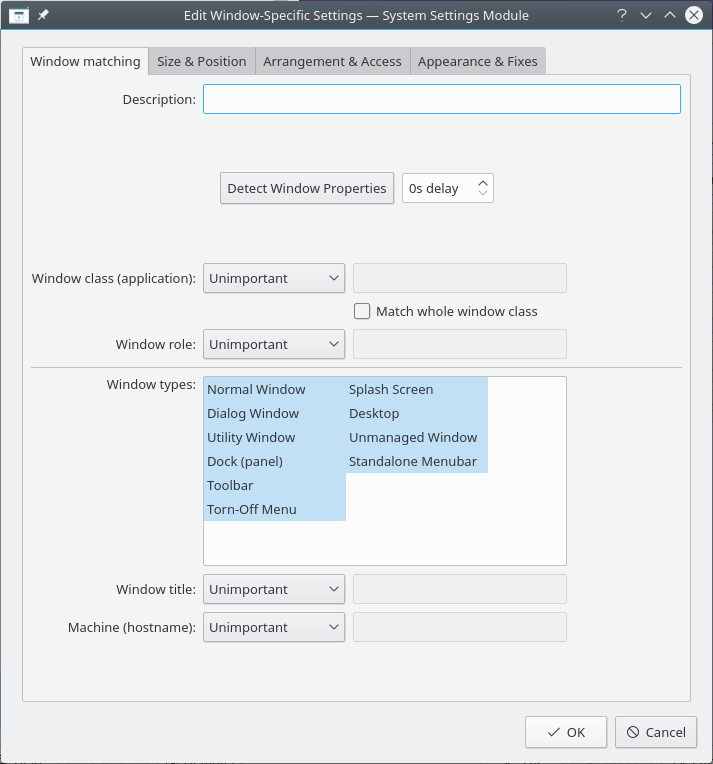
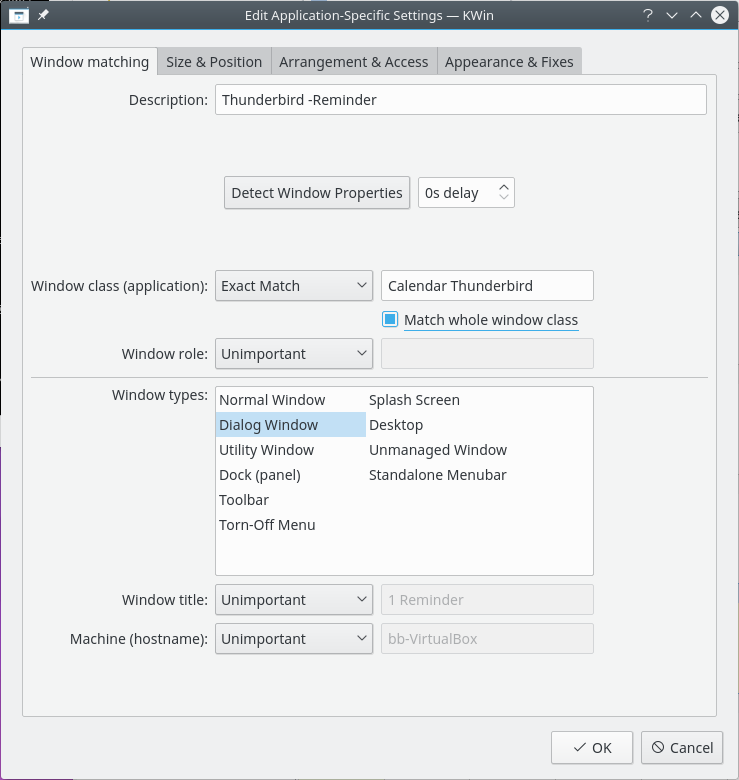
These criteria decide whether the rule applies to a window. You can specify any number of them, and none matches any window.
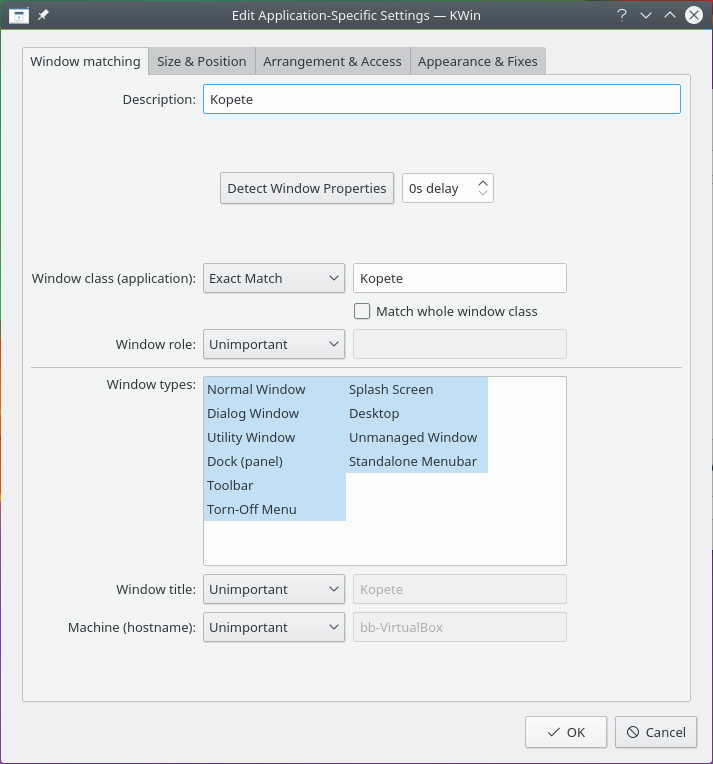
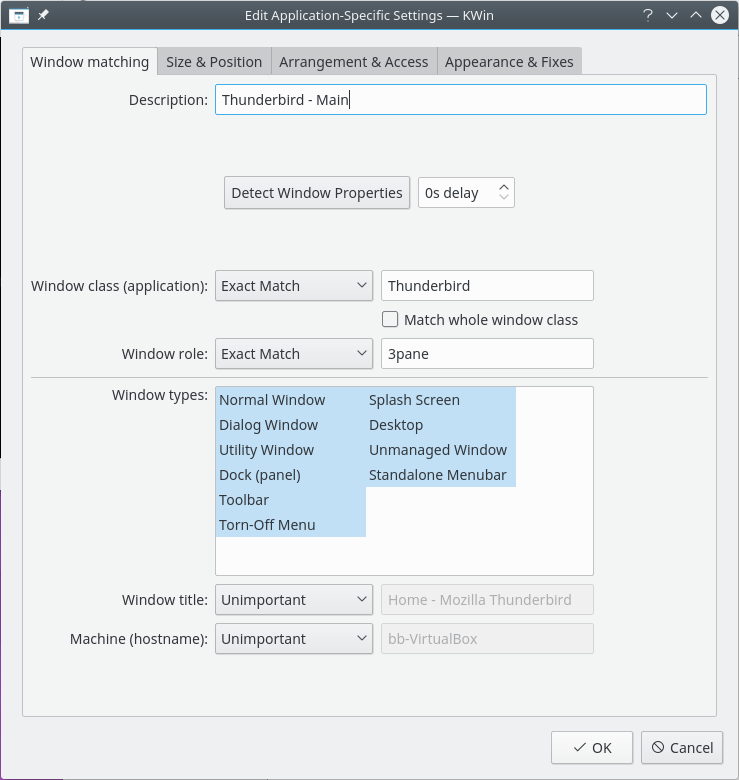
- Window class (application): Matches the class. Match whole window class also includes the secondary class.
- Window types: Restricts the match to types such as Normal window and Dialog window.
- Window role: Restricts the match to the window's function, such as a main window or chat window.
- Window title: Restricts the match to the window's title.
- Machine (hostname): Restricts the match to the host associated with the window.
For each field you can choose how it's compared:
- Unimportant: Ignores the field.
- Exact match and Substring match: Both ignore case. For example, AB matches AB, ab, Ab and aB.
- Regular expression: Uses Qt's regular expressions.
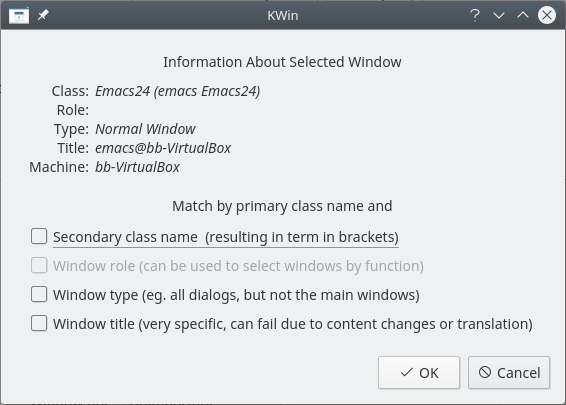
Detect Window Properties
You can enter this information by hand, but it's better to use Detect Window Properties.
- Start the application you want to create a rule for.
- Choose a delay with the button's menu: Instantly, or after a number of seconds.
- Click Detect Window Properties.
- When the pointer turns into crosshairs, click inside the application's window, not on its titlebar.
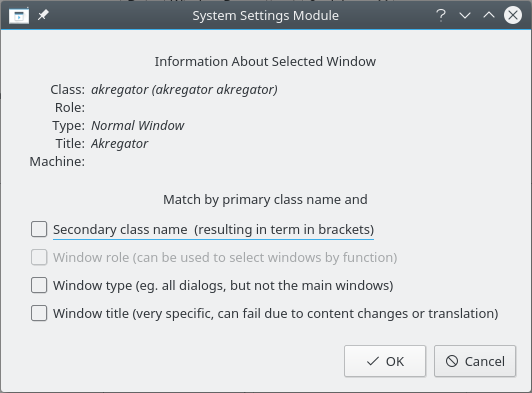
- A list shows information about the window. Select what you want to use, and it's filled in as matching criteria or property values.
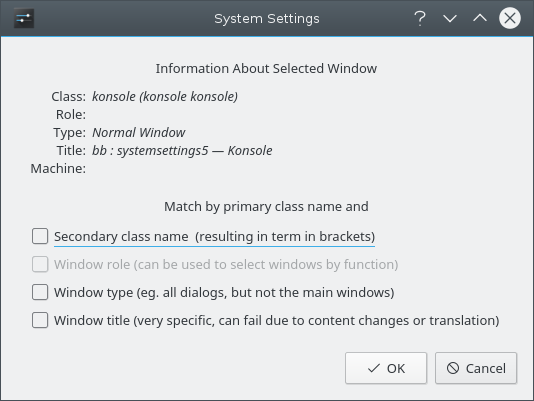
Using a combination of this, a rule can apply to a whole application, by class, or to a specific type of window within it, such as a toolbar.
Window properties
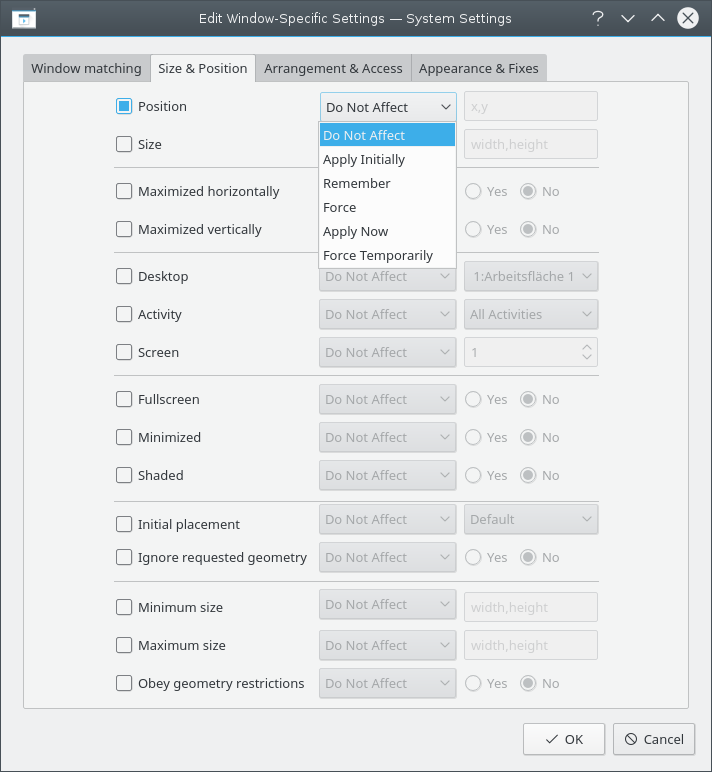
Each property has a setting that determines how it's applied. It accepts at least one of these:
- Do not affect: Makes sure a later matching rule doesn't affect the property.
- Apply initially: Starts the window with the property, and lets it change while running.
- Remember: Uses the rule's value, and if it changes while running, saves and uses the new value instead.
- Force: The setting can't be changed while running.
- Apply now and Force temporarily: Apply the setting once and then unset it. Apply now lets it change while running, and Force temporarily stops it being changed until all affected windows close.
[!WARNING] With Apply now, if the rule has no other properties set, it's deleted after evaluation. With Force temporarily, it's deleted after the last affected window closes.
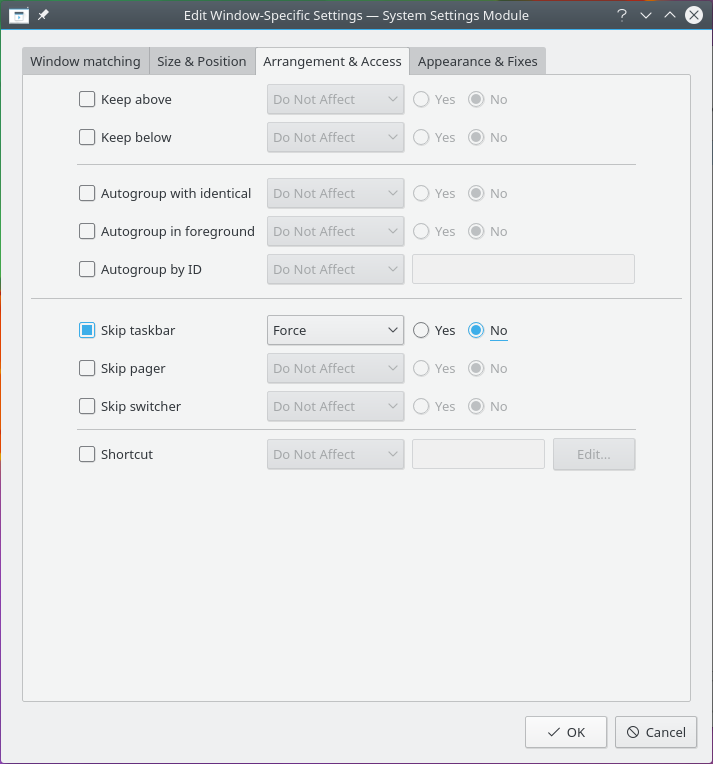
Yes/No settings turn a property on or off. It can help to read them literally: Skip taskbar set to No means don't skip the taskbar, so the window is shown there.
Size & Position
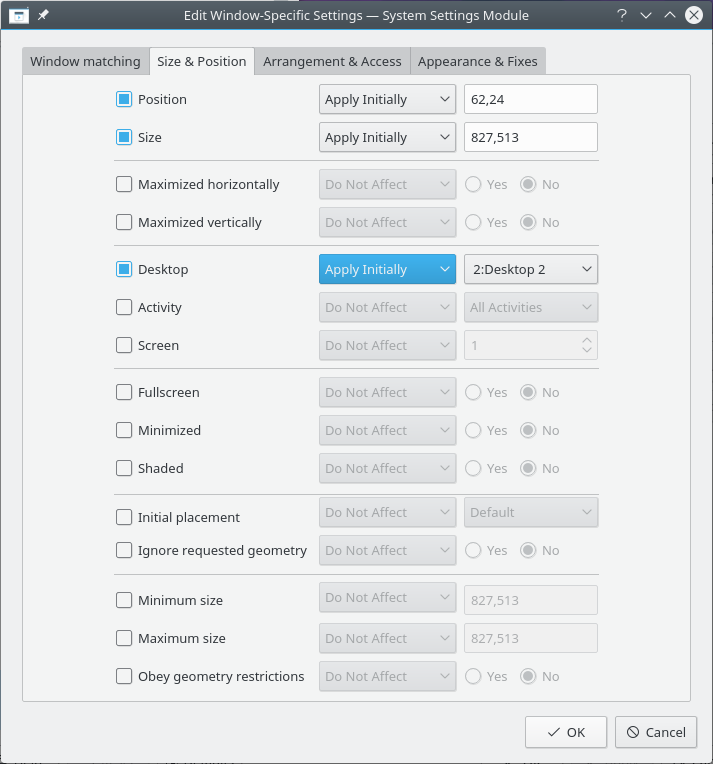
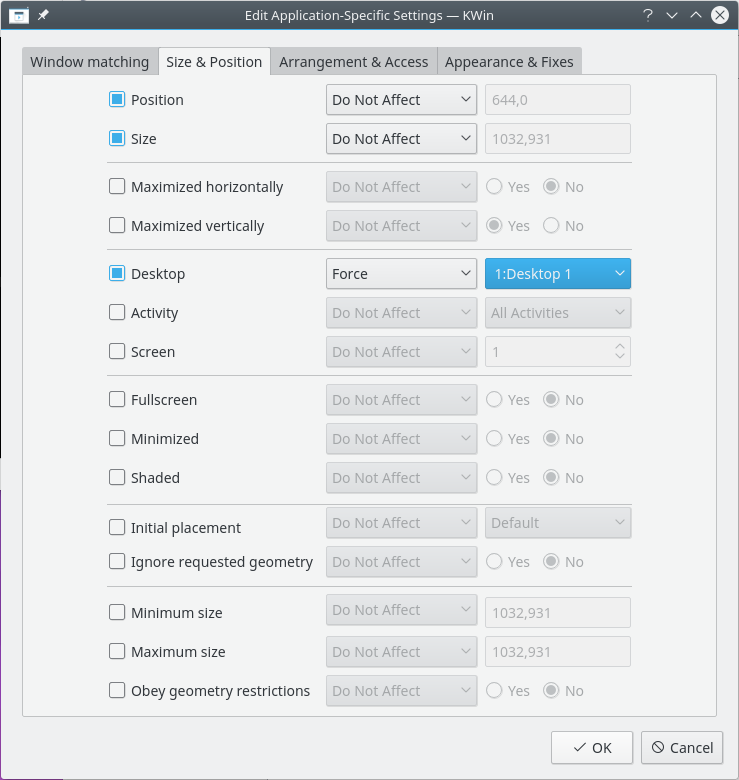
- Position: Puts the window's upper left corner at the given coordinates. The origin, (0,0), is the upper left of the desktop.
- Size: The window's width and height.
- Maximized horizontally and Maximized vertically: Turn each kind of maximizing on or off. Use both, or Initial placement set to Maximized, for full maximizing.
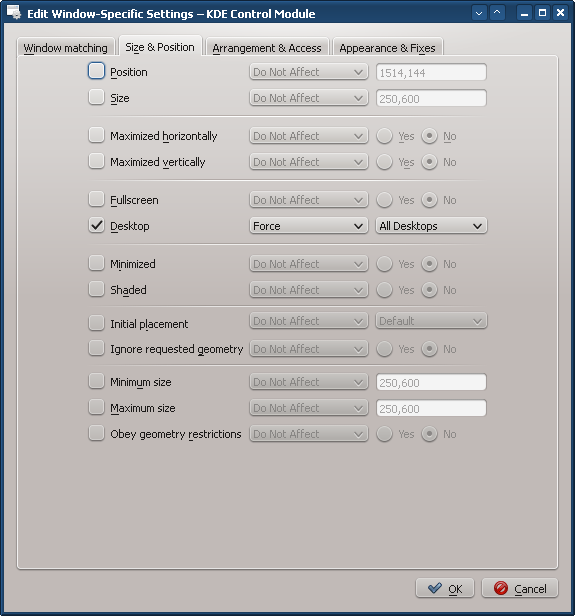
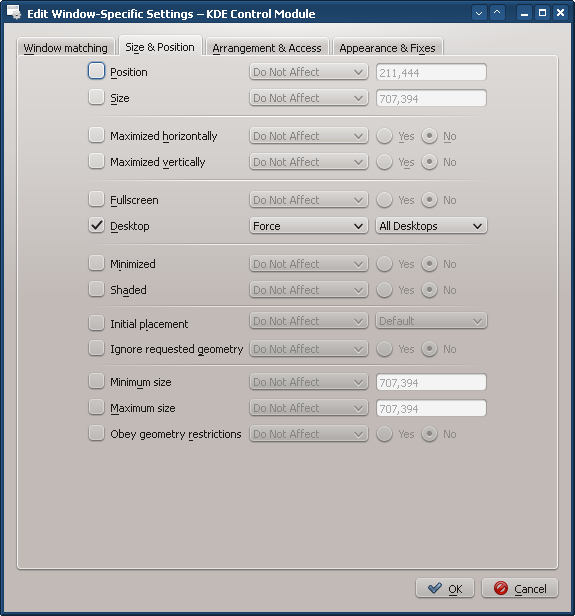
- Virtual desktop, Activities and Screen: Put the window on the given desktop, activity or screen. All desktops puts it on all of them.
- Fullscreen, Minimized and Shaded: Turn these on or off. For example, a window can be started minimized.
- Initial placement: Overrides the global placement policy with Default, No placement (top-left corner), Minimal overlapping, Maximized, Centered, Random, In top-left corner, Under mouse or On main window, which keeps a child window within its parent.
- Ignore requested geometry: Whether to ignore the position the window asks for. Some applications set their own geometry after starting.
- Minimum Size and Maximum Size: The smallest and largest sizes allowed.
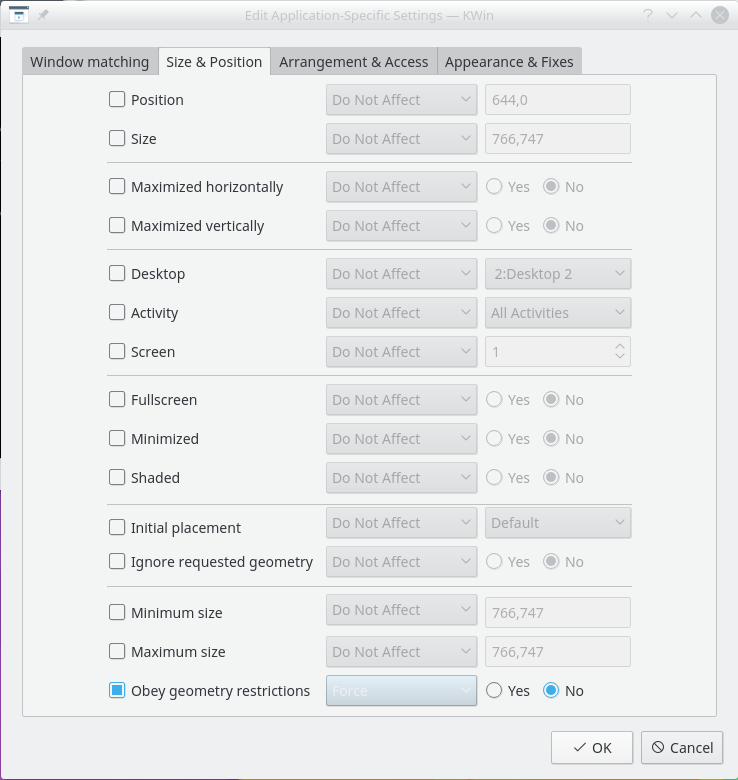
- Obey geometry restrictions: Some applications, like video players and terminals, ask to be constrained to certain aspect ratios or to grow by steps larger than one pixel. This sets whether to follow those requests.
Arrangement & Access
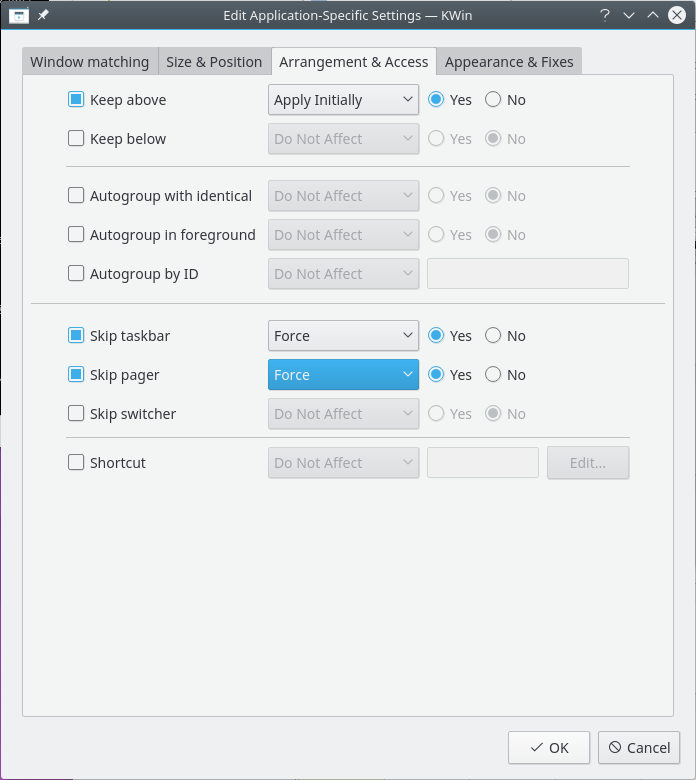
- Keep above other windows and Keep below other windows.
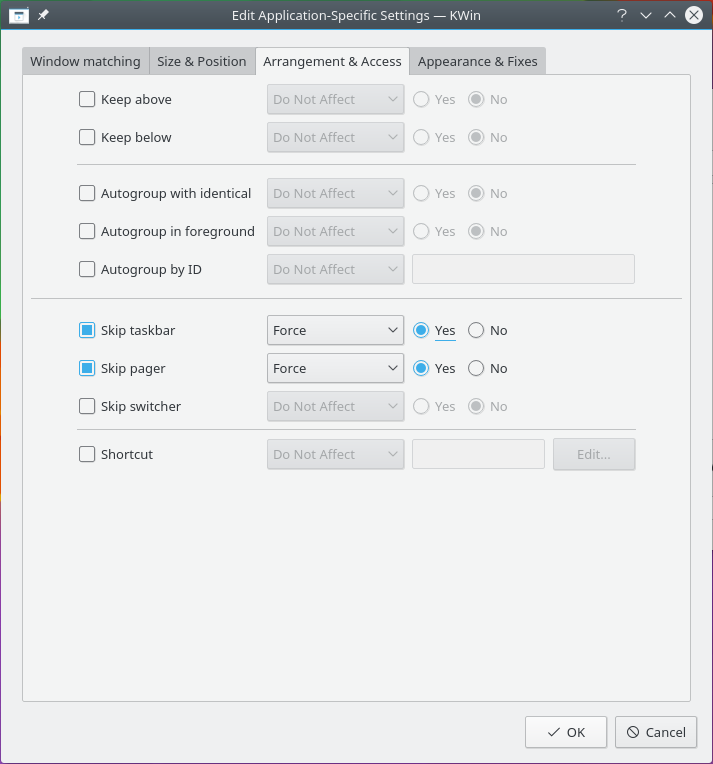
- Skip taskbar: Whether the window appears in the task manager.
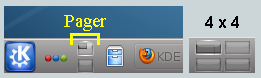
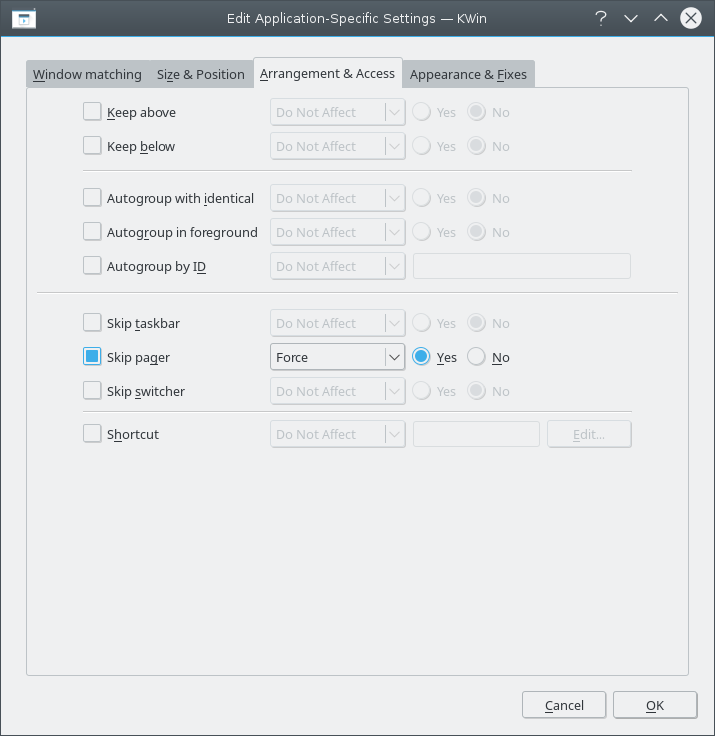
- Skip pager: Whether it appears in the Pager widget.
- Skip switcher: Whether it appears in the Alt+Tab list.
- Shortcut: Assigns a shortcut to the window.
Appearance & Fixes
- No titlebar and frame.
- Titlebar color scheme: A color scheme for the window's titlebar.
- Active opacity and Inactive opacity: The window's opacity as a percentage when active or inactive. These need desktop effects, and readability may suffer at very low values.
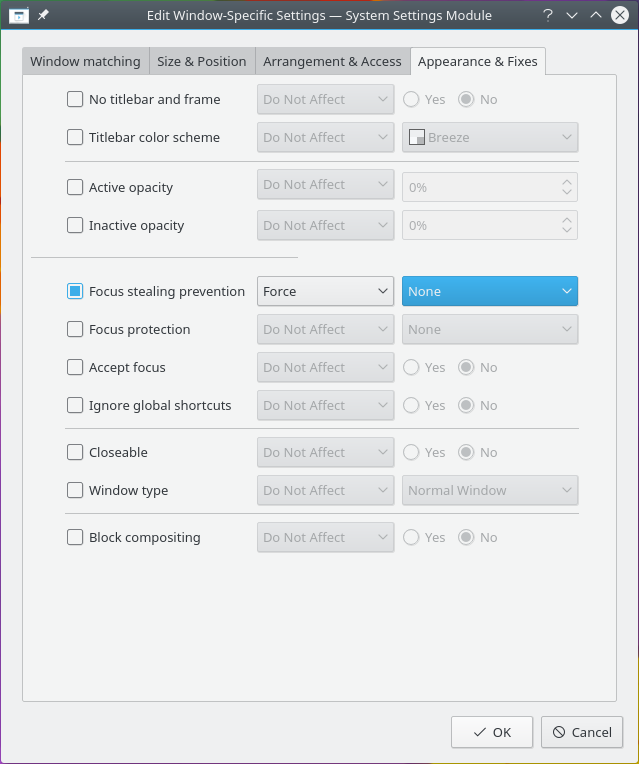
- Focus stealing prevention: How to handle a window that wants focus, from None, which always grants it, through Low, Normal and High, to Extreme, which only grants it when you ask for it explicitly.
- Focus protection: Controls how well the window is protected from having focus taken from it, at the same levels.
- Accept focus: Whether the window becomes focused when clicked.
- Ignore global shortcuts: Stops global shortcuts, as set in Shortcuts, from working while the window is active.
- Closeable: Whether the window can be closed from its titlebar. A terminal may still be closed by ending its shell.
- Desktop file name: The application's desktop file, used for things like its icon.
- Window type: Changes the window to Normal window, Dialog window, Utility window, Dock (panel), Toolbar, Torn-off menu, Splash screen, Desktop, Standalone menubar or On-screen display, and it takes on that type's characteristics.
- Layer: The window's stacking layer.
- Block compositing: Turns off compositing while any matching window exists. It comes back on when the last one closes.
- Adaptive sync and Allow tearing, where they're supported.
[!WARNING] Use Window type with care, because it can have unwanted results. For example, the window manager closes a splash screen when you click it.
Examples
The first example gives all the steps. Later ones only give the parts specific to them. The screenshots are from an older version of the module, using Akregator, Kopete, KNotes, Thunderbird and Emacs as the applications.
Pin a window to a desktop and set other properties
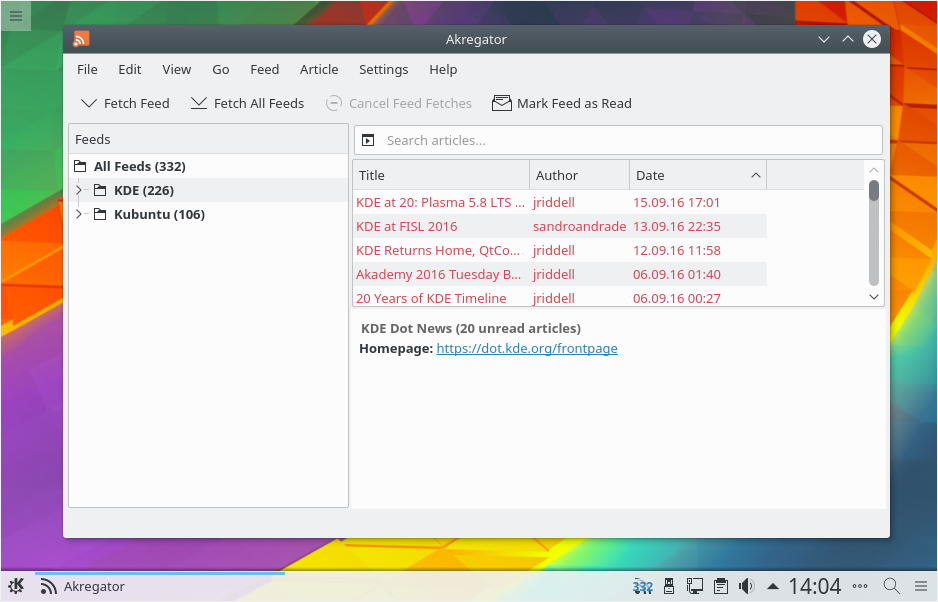
Pin an application to virtual desktop 2 and start it with a preferred size and position. Each property uses Apply initially so it can be changed while running.
-
Start the application on desktop 2, and size and position it to suit.
-
Right-click the titlebar and open the window rules from More Actions, or click Add New… in the module.
-
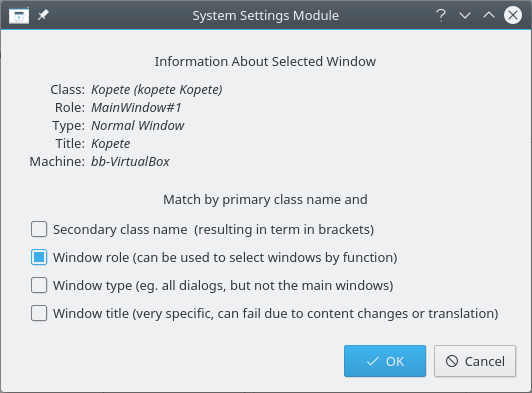
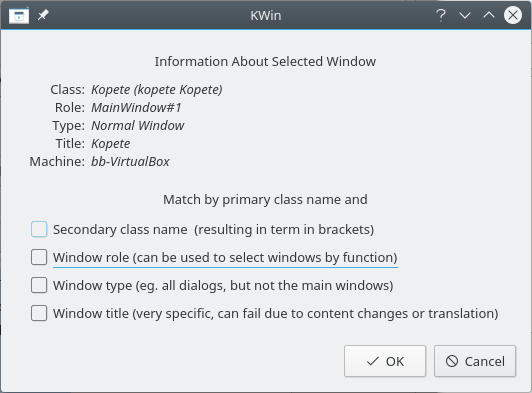
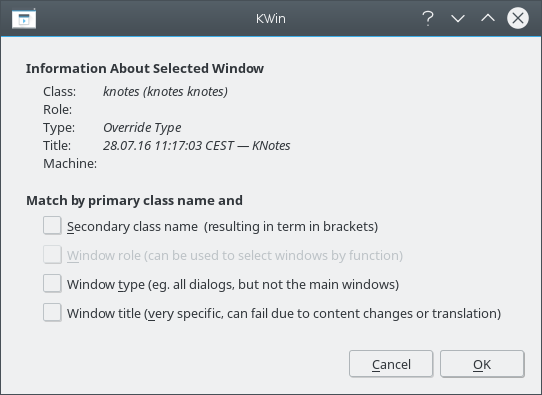
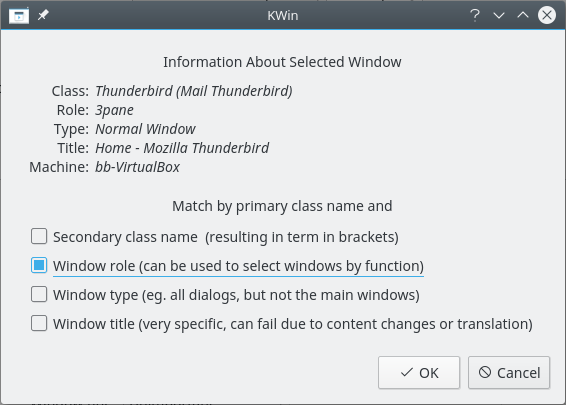
Click Detect Window Properties, then click inside the window. Match only by the primary class name, so leave the extra options unchecked.
-
Enter a meaningful Description, which is shown in the rule list.
-
Add the properties Position, Size and Virtual desktop. Their initial values come from Detect Window Properties and can be changed.
-
Apply your changes.
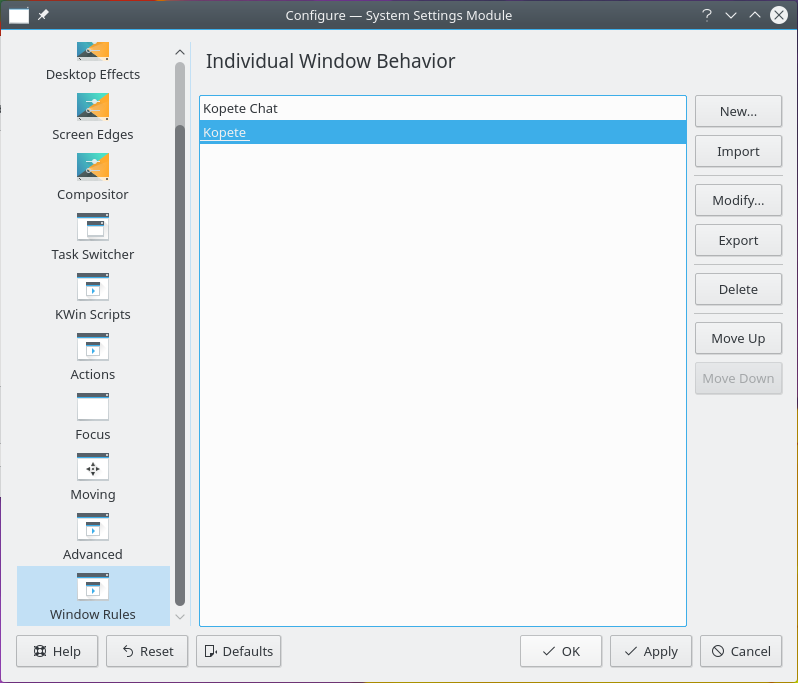
An application on all desktops, with one different child window
Show a chat application and its child windows on all desktops and skip the taskbar and pager, except that conversation windows do show in the taskbar. Each property uses Force.
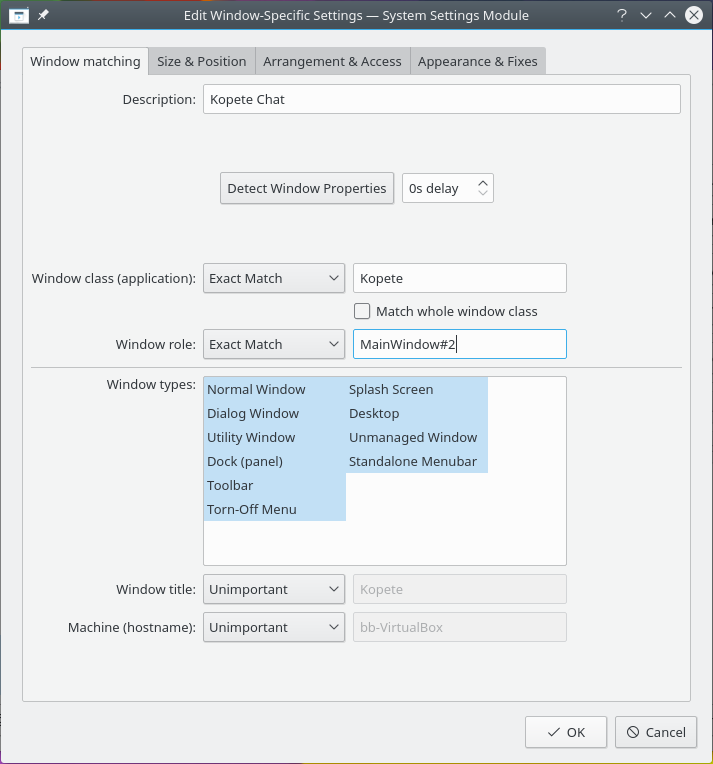
This needs two rules, and because of rule evaluation the conversation window's rule must come first, since its matching is more restrictive:
-
The conversation window: Detect the window, and select its window role to restrict the rule to conversation windows. Add Virtual desktop set to All desktops, Skip taskbar set to No, and Skip pager set to Yes.
-
The application: Detect the main window and match only by primary class name. Add Virtual desktop set to All desktops, and Skip taskbar and Skip pager set to Yes.
Hide a window from the Pager
If an application's windows don't offer this themselves, detect one, match by primary class name, and add Skip pager with Force.
Force a window to the top
To bring an active window to the top, set its Focus stealing prevention to None, usually with Force.
Several rules for one application
An email application can have several kinds of window. Rules with enough matching criteria don't depend on their order:
-
Main window: Detect it and select the window role. Add Virtual desktop, Position and Size to pin it.
-
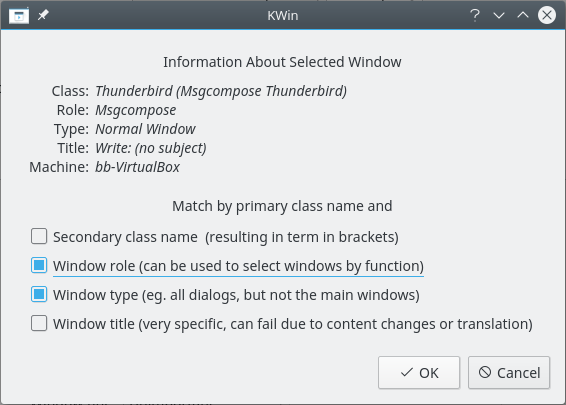
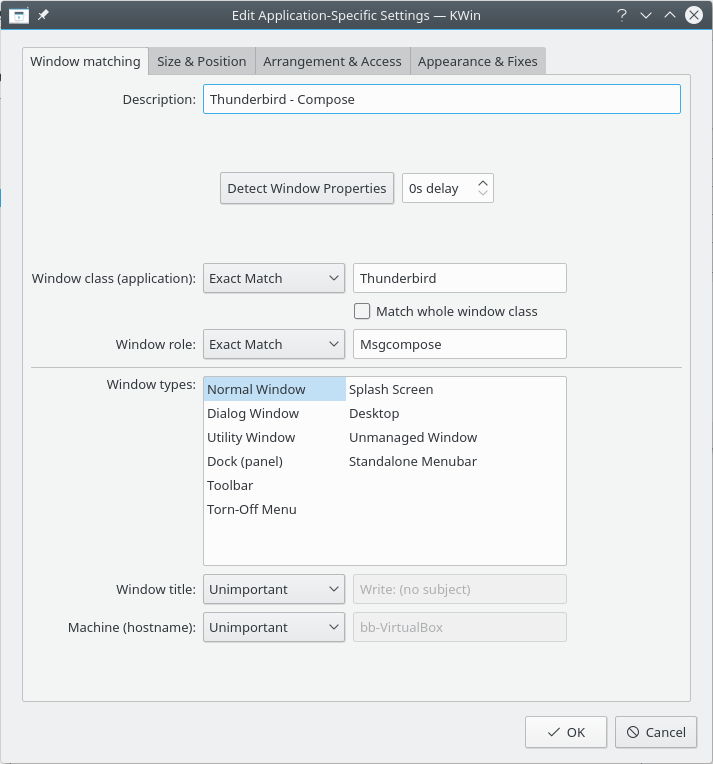
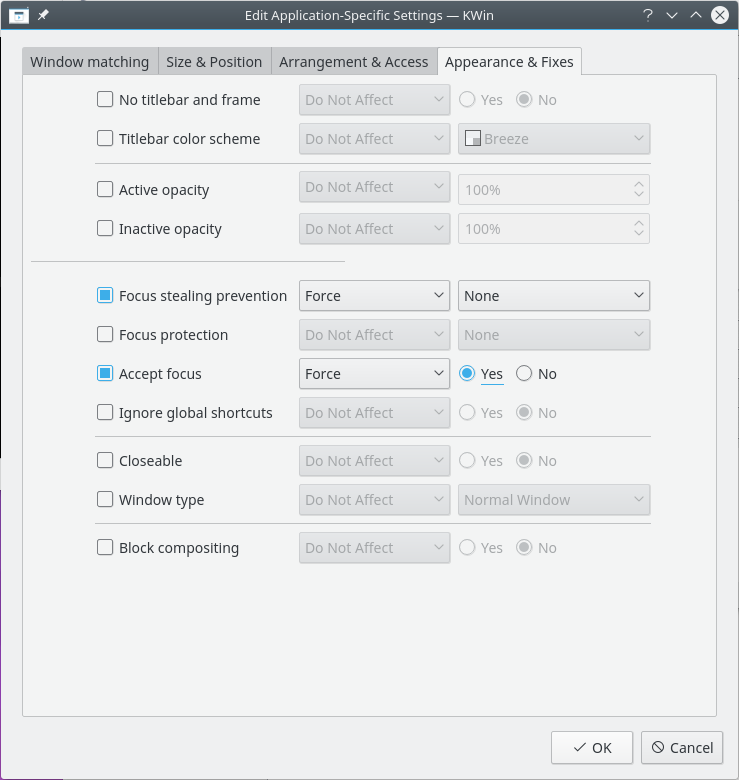
Composer: Detect it and select the window role and type. Add Focus stealing prevention set to None and Keep above other windows, so it comes to the top when activated.
-
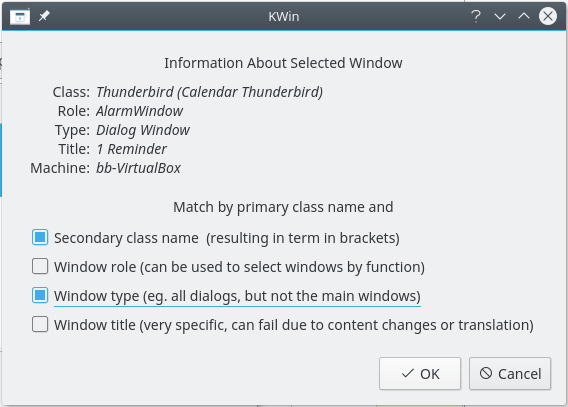
Reminder: Detect it and select the secondary class and window type. Add Keep above other windows and Focus stealing prevention set to Extreme, so it comes to the top without taking focus and isn't dismissed by accident.
Application workarounds
Full-screen resize error
Some editors, such as Emacs and gVim, can have window resizing problems when maximized. A rule works around it: detect the window, match by primary class name, then add Obey geometry restrictions set to No with Force.