Desktop Style
The style defines how the parts of the desktop, such as panels and widgets, are displayed. In this module you can install, choose and remove styles.
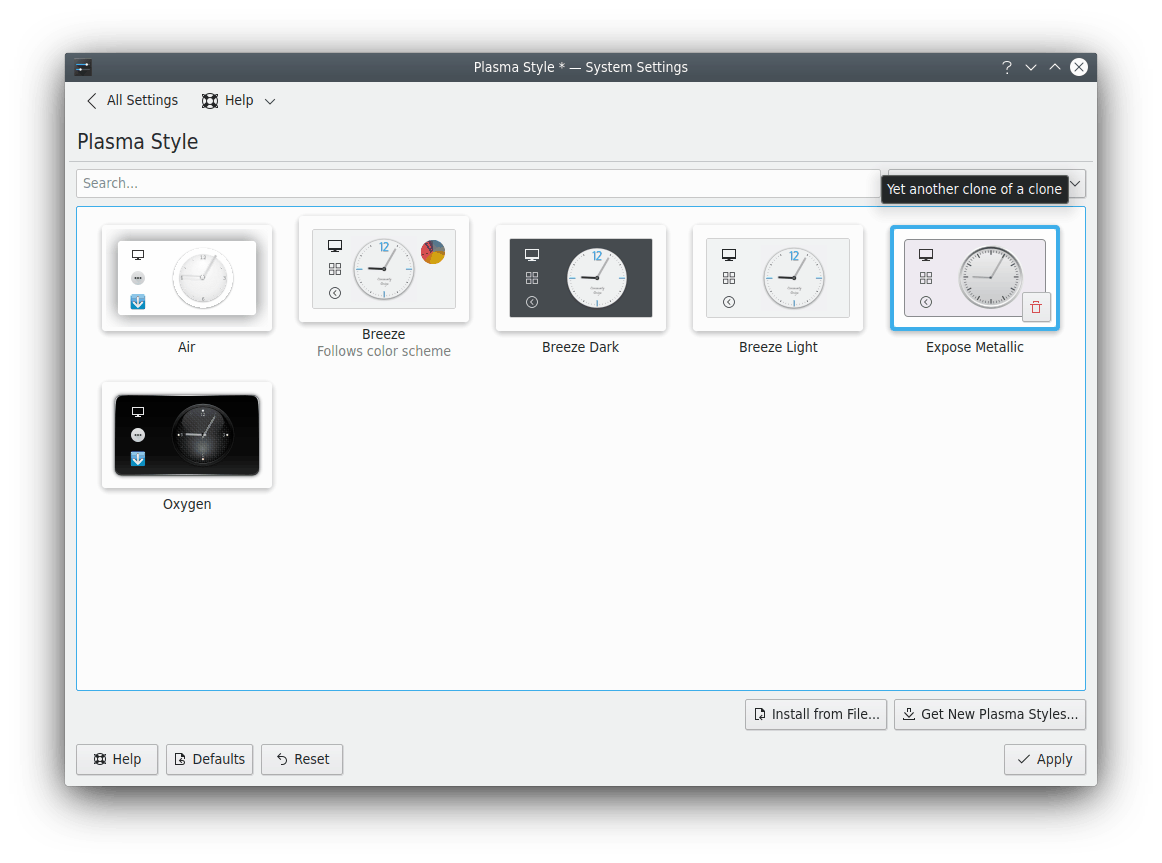
You can filter the list with the search field, and the box next to it shows All themes, Light themes, Dark themes or Color scheme compatible themes.
Hover over a style to reveal its remove button. To undo it, click the undo button. Styles marked for removal are deleted when you click Apply, and you can't undo that. You can't delete system-installed styles or the active one.
If the Plasma Theme Explorer from plasma-sdk is installed, hovering over a style also offers Edit Theme….
For more technical information, see Understanding desktop themes.
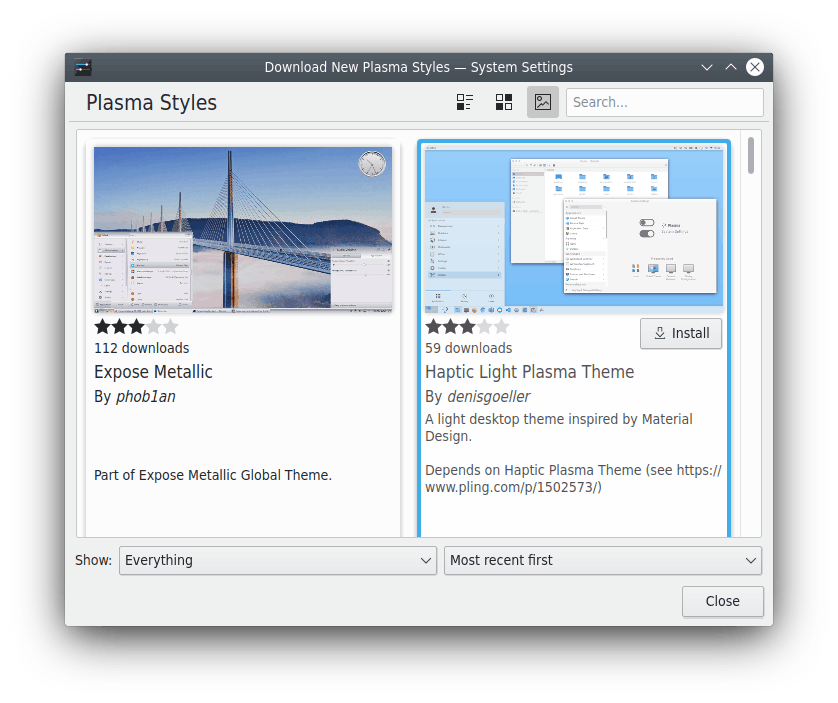
- Get New…: Needs an Internet connection. It opens a dialog to choose a new style. Click Install on one, and your new style is available as soon as you close the dialog.
- Install from File…: Opens a file dialog to point to a style you've downloaded, as a
.zip,.tar.gzor.tar.bz2file. It's then installed and added to the list.
Configuring the desktop style
Configure Desktop Style… has settings for styles that support them, such as Silver Light and Silver Dark. Other styles keep their own look, and the page says so when one of them is selected.
Transparency
How see-through the desktop is.
- Use these settings instead of the desktop style's own: Turns the settings below on. Moving a slider turns it on for you.
- Panels, Pop-ups, Tooltips and Desktop widgets: How transparent each one is, from Transparent to Opaque. Pop-ups include their top and bottom bars, such as the search field and buttons in the application launcher. Desktop widgets are only see-through while the Blur desktop effect is on.
Changes show straight away when you click Apply.